3 Best Password Managers for Android (2026)

Most of us are fully aware of all the potential risks associated with the Internet. From phishing scams to identity theft, we live with the knowledge that a relaxed attitude towards cybersecurity can have disastrous results. Still, many people stop thinking about these risks when they switch to their mobile device. Your first line of defense is the right password manager for Android.
For those who are already using an Android password manager, you might not be using the right one. If you have separate password lists on your laptop and mobile device or can’t share accounts easily, then the right password manager for Android can simplify your life.
TeamPassword is the easiest way to manage credentials on your Android. Don’t believe us? Sign up for a 14-day free trial today and try for yourself.

Table of Contents
Questions to ask when deciding which Android password manager you should use
Before we can choose the best password manager for you to use on your Android, you need to answer the following questions:
- Do you use more than one device (phone, laptop, etc.)?
- Are you a Multi-OS user?
- Do you only use Chrome?
- Do you use your Android for business?
- Do you need to share accounts?
Let’s take a look at how these questions influence your answer.
1. Do you use more than one device (phone, laptop, etc.)?
For the vast majority of people, the answer is, of course, “yes.” Many Android password manager options are tied directly to your phone or browser. In that case, you may end up with a separate password list on your laptop. This makes bulk management actions more difficult, as it all needs to be done on your Android phone instead of a larger browser window on your laptop.
If you have separate password lists that don't sync seamlessly across all your devices, you'll be constantly frustrated tracking which password manager is on which device, and if they're all up-to-date.
2. Are you a Multi-OS user?
Grounding your choice in real-world user workflows is critical. Do you use a Windows PC for gaming or personal use, a MacBook for work, and an Android phone for your daily life?
If you rely on browser-locked or OS-locked managers (like Apple Keychain or Google Password Manager), you will constantly face friction when jumping between these ecosystems. A dedicated third-party app bridges that gap, acting as a universal translator that provides secure access to your vault regardless of the hardware you are holding.
3. Do you only use Chrome?
According to recent 2026 data from Statcounter, Chrome occupies roughly 66% of the global browser market share, with Safari trailing at 18% and Edge near 5%. It is safe to say that a sizable portion of the Android smartphone user base is solely using Chrome.
However, this isn’t the case for everyone. Many people switch operating systems from device to device and therefore browser preferences as well. Others might not be allowed to download their preferred browser onto their work laptop due to strict IT policies.
TeamPassword is an excellent option for this use case, since it functions with and has browser extensions for Chromium-based browsers, Safari, Firefox, and Edge. Alternatively, if you exclusively use Chrome on both your Android and laptop, Google Password Manager might be a frictionless option for you.
4. Do you use your Android phone for business?
Businesses are at greater risk of cyberattacks because criminals can gain more from each phishing campaign. As such, your company may require you to use the password manager of their choice—one built for business.
It may also put further requirements on the available features you need in your Android password manager, such as:
- Compliant, transparent zero-knowledge security practices
- Partitioned sharing: divide passwords into groups and allow access to users based on only the passwords they need
- Enforceable 2FA across the entire team
If your Android is sometimes used for business, then you will get required value out of the features only available with TeamPassword.
5. Do you need to share accounts?
Lastly, do you share accounts? This is frequently encountered in businesses where software requires a per-seat licensing fee and teams save money by sharing credentials. However, individuals also share accounts with friends and family for the same reason.
The most secure way to share accounts is through a password manager. That way, you don’t need to text or email the actual password, leaving a digital paper trail for hackers. Instead, you grant access to the account directly within your encrypted vault.
The 3 Best Password Managers for Android
Here are three of the best Android password managers for different use cases:
- TeamPassword
- Bitwarden
- Google Password Manager
TeamPassword
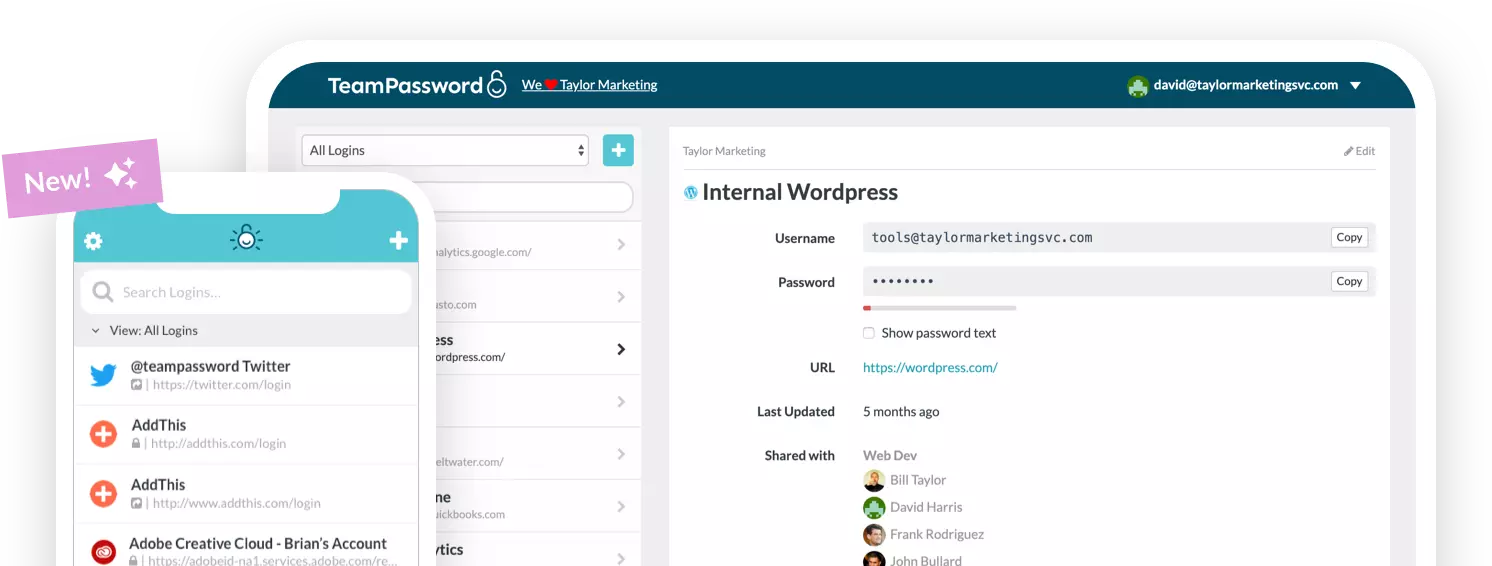
TeamPassword is designed specifically for the needs of businesses and collaborative teams. With that in mind, you can share accounts securely with teammates by giving them access to the credentials without sending them via unencrypted channels like Slack or email.
- Ability to share passwords across granular groups and subgroups
- App-based multi-factor authentication (MFA)
- Strong, random password generator
- Extensions for every major browser
- Activity logs and email alerts for suspicious logins
By working across browsers, apps, and devices, TeamPassword makes sure you only have one centralized, secure list of passwords that is accessible everywhere. Want to see why TeamPassword is the perfect password manager for Android? Sign up for a 14-day free trial today.
Bitwarden
Bitwarden is known as an open-source password manager, which makes it particularly appealing to power users who value auditing open codebases. It offers a capable password manager app for Android devices.
There are free and paid versions of Bitwarden, which differ in the types of features available, the size of teams that can access the password vault, and how “out of the box” the password management solution is. For highly technical Android users, the open-source nature will be appealing. However, most business users prefer the ease-of-use and streamlined sharing interface of TeamPassword.

Google Password Manager
For a solo user who exclusively uses Android and Google products, Google Password Manager is perfectly sufficient. It is deeply integrated into the operating system, completely free, and handles basic autofill seamlessly.
However, for privacy-conscious users and businesses, it falls short. Unlike dedicated third-party apps, Google Password Manager does not use true Zero-Knowledge Encryption by default. This means Google technically holds the encryption keys and could access your data if legally compelled. TeamPassword and Bitwarden use end-to-end zero-knowledge architectures, meaning it is mathematically impossible for anyone but you to see your passwords.
Additionally, tying your password manager to your primary email account is a massive security risk. Email accounts are the prime target of all hacking campaigns. If a hacker compromises your Gmail account, they instantly gain access to your entire password vault, creating a catastrophic domino effect. A standalone manager isolates your vault from your inbox.
Finally, while Google recently introduced "Family Sharing" for passwords, it lacks the robust, partitioned sharing and auditing features required by modern teams. You may wish to disable Google Password Manager if you use your Android for business purposes to avoid mixing personal and corporate credentials.
The Rise of Passkeys on Android
The authentication industry has heavily shifted toward passwordless logins. Modern Android devices utilize the unified Credential Manager API, a streamlined bottom-sheet UI that seamlessly handles standard passwords, "Sign in with Google" prompts, and Passkeys.
Both Google Password Manager and top third-party tools integrate with this API to store and autofill passkeys. While passkeys are fantastic for phishing-resistant personal security, it is important to note that they do not fix all problems. In a business environment, tying a secure login strictly to one employee's physical device hardware makes provisioning, revoking, and team sharing incredibly difficult. A dedicated password manager solves this by securely storing both complex passwords and passkeys in a manageable, shared vault.
TeamPassword is the best password manager for Android
Google Password Manager and Bitwarden offer solid password management solutions. If you primarily use Chrome, only use Android devices, and don't require advanced business features, Google Password Manager is a straightforward choice.
However, for users who frequently switch between devices, operating systems, or need to share accounts with colleagues, TeamPassword provides a more comprehensive solution. TeamPassword offers seamless access across various platforms and browsers, making it ideal for those who need to manage credentials on both their Android devices and laptops.
In addition to its cross-platform compatibility, TeamPassword's account sharing capabilities allow you to securely grant granular access to teammates. Moreover, TeamPassword's auditing functions provide valuable insights into who is accessing or changing passwords, ensuring you maintain complete control over your business accounts.
If you're looking for a powerful and versatile password manager for your Android device, TeamPassword is the ideal choice. Don't just take our word for it—sign up for a free trial today and experience firsthand how easy password management can be.
おすすめの記事
The 5 Best Enterprise Password Vaults (2026 Comparison)
Standard password tools fail at enterprise scale. Learn how to choose a password manager for security, compliance (SOC ...
What is password encryption and how does it work?
Password encryption is the number one component of password security. TeamPassword encrypts passwords with state-of-the-art technology to keep ...
Cybersecurity for Utilities: Common Threats & Best Practices
The utilities sector is ripe for cyber threats. Learn more about these threats and how to prevent them ...