Every publisher knows the quiet dread of the update notification. WordPress security updates are the single most effective habit for keeping a site safe — the majority of successful attacks exploit vulnerabilities that already had a patch available — and yet the fear of breaking a live, revenue-generating site keeps too many teams clicking "remind me later." That hesitation is understandable. A botched update can knock out your homepage, mangle a template, or lock an editor out an hour before a deadline. But "wait and see" is how small sites become cautionary tales. The good news: you don't have to choose between staying secure and staying online. What you need is a repeatable process — one that lets you apply patches promptly and confidently, catch problems before your readers do, and recover in minutes if something goes sideways. This guide walks through exactly that.
Why WordPress security updates matter more for publishers
WordPress runs a huge share of the web precisely because it's flexible and extensible — and that same flexibility is what makes a busy publication an unusually large target. A typical content site isn't a single, tidy application. It's WordPress core plus a theme, plus fifteen or twenty plugins, plus a comment system, plus a roster of logged-in contributors, each of whom is a potential entry point. Every one of those components is code written by someone else, and every one of them ships security fixes on its own schedule.
That's what people mean by "attack surface." A brochure site with two plugins and one admin has very little of it. A daily publication with an SEO suite, a caching layer, a membership plugin, a forms tool, an ad manager, and a dozen writers has a great deal of it. Public-facing features make it worse: open comment forms, contributor registration, and file uploads are all conveniences for readers and staff that attackers probe relentlessly.
The important reframe is that an unpatched vulnerability isn't just a technical loose end — it's a business risk. A compromised site can be quietly injected with spam links that tank your search rankings, redirected to malware that gets you flagged by Google, or held ransom. For a publication whose revenue depends on traffic, uptime, and reputation, "we'll patch it next quarter" is a financial decision, whether you frame it that way or not.
The three layers you actually have to update
Updates aren't one thing. They arrive in three layers, each with a different risk profile and a different cadence. Understanding the differences is what lets you triage instead of panicking every time a badge appears in your dashboard.
WordPress core
Core is the WordPress software itself. Minor releases — the ones with version numbers like 6.4.2 — are almost always security and maintenance fixes, they're designed to be low-risk, and by default WordPress applies them automatically. Leave that on. Major releases (6.4 to 6.5, say) can introduce editor changes and occasional compatibility wrinkles, so those are worth applying deliberately after a quick test rather than the instant they land. Core is generally the most stable layer; the WordPress team takes backward compatibility seriously.
Themes
Your theme controls how the site looks, so a bad theme update is the one most likely to visibly break something — shifted layouts, broken fonts, a mangled homepage. The biggest trap here is customizations made directly to a theme's files, which get wiped out on update. If your team has ever "just tweaked the CSS" in the theme editor, an update can silently erase that work. The fix is to use a child theme so your changes live somewhere updates can't touch. Themes update less often than plugins, but when a theme vulnerability appears it's worth prompt attention because it often touches every page.
Plugins
Plugins are where most of the action is — and most of the risk. They're the largest layer, they come from many different developers of varying diligence, and they're the most common source of both vulnerabilities and update-related breakage. A plugin might push several updates a month or go silent for a year. This is the layer that rewards a careful, staged process the most, and it's the one the workflow below is really built around. Choosing and auditing plugins well is a whole discipline in itself — our companion guide to choosing security-focused WordPress plugins goes deeper on vetting sources and spotting abandoned code.
A safe update workflow (step by step)
Here's the core of it: a five-step routine that turns updating from a gamble into a procedure. Follow it in order and the worst-case outcome shrinks from "the site is down and I don't know why" to "I rolled back in two minutes and filed a note."
1. Back up first — always
Before you touch anything, take a full backup: files and database, together, so you have a single point you can restore to. This is non-negotiable, because a good backup converts a catastrophe into an inconvenience. Confirm the backup actually completed and, ideally, that it's stored somewhere off the server. If your only backup lives on the same machine that just got compromised or corrupted, it isn't really a backup.
2. Test on a staging copy
A staging site is a private clone of your live site where you can apply updates and see what happens with zero risk to readers. Most quality managed hosts offer one-click staging; if yours does, use it every time. Apply the pending updates on staging first, click through your key pages, and only promote the changes to production once you're satisfied. Testing on staging is the single habit that separates teams that update fearlessly from teams that don't update at all.
3. Update plugins one batch at a time
Resist the "update all" button when several plugins are pending. If you apply twenty updates at once and the site breaks, you have no idea which one did it. Instead, update in small logical batches — or one at a time for anything critical like your e-commerce, caching, or security plugins — and check the site between batches. It's slower, but it turns troubleshooting from an archaeology dig into a glance.
4. Verify the front end and key templates
An update can succeed technically and still break something visually. After updating, actually look at the site the way a reader would: load the homepage, an article, a category archive, and any custom template like a paywall page or a landing page. Test the things readers and staff rely on — the search box, the main navigation, comment submission, your newsletter signup, and the checkout or membership flow if you have one. A green "updated successfully" message is not the same as a working site.
5. Roll back if something breaks
If verification turns up a problem you can't fix in a few minutes, don't debug on the live site while readers watch. Roll back — restore the backup from step one, or revert the specific plugin to its previous version — get back to a known-good state, and diagnose calmly afterward. Knowing you can always retreat to a working site is exactly what makes it psychologically possible to update promptly in the first place.
How to handle updates across a multi-author team
On a solo blog, update discipline is just self-discipline. On a multi-author publication, it's a coordination problem — and coordination problems need an owner. Someone has to own the update schedule: a single person (or a rotating role) responsible for running the workflow above on a set cadence, rather than "whoever happens to notice the red badge." Diffusion of responsibility is how sites go six months without a patch while everyone assumes someone else is handling it.
The other multi-author hazard is rogue plugins. When contributors and editors have admin rights, any of them can install a plugin from an untrusted source, and a single sketchy plugin can undo all your careful patching. The defense is tight access control: writers should have author-level accounts, not administrator accounts, so the ability to install and update plugins is limited to the small group actually responsible for it. Update discipline, in other words, depends directly on who can change what.
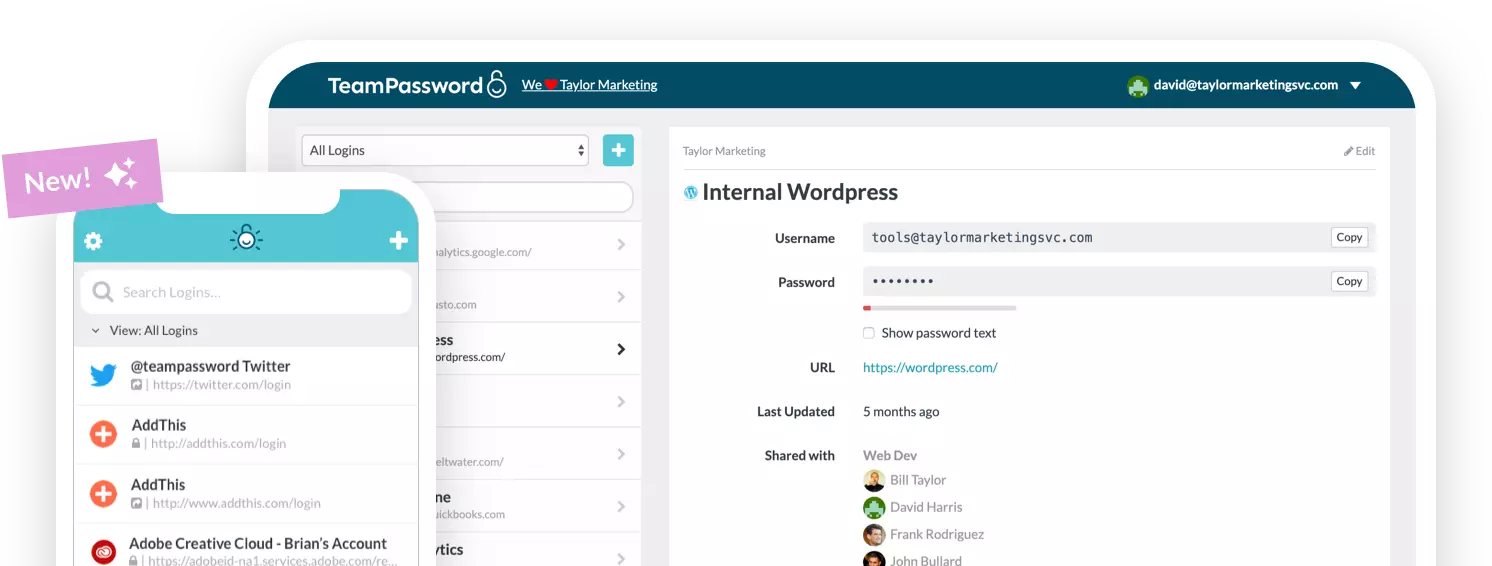
Access control also matters in the moment something goes wrong. If an update reveals that an account has been exposed, start by resetting a compromised WordPress password before you touch anything else — locking down access comes first. And because contributors come and go, keeping shared and admin credentials organized in a team password manager like TeamPassword means you always know who holds the keys — and can revoke them instantly — rather than chasing a login someone set up two years ago.
Common WordPress security issues that updates won't fix
Here's the uncomfortable truth that pure "keep everything updated" advice skips: a fully patched site can still be wide open. Updates close the vulnerabilities in your code. They do nothing about the vulnerabilities in your habits.
The biggest of these is credentials. Weak or reused admin passwords are still one of the most common ways WordPress sites get breached, and no update will save you from an administrator whose password is Summer2024. Neither will it help with stale accounts — the freelancer who wrote for you last spring and still has an active login, the former editor whose credentials were never revoked, the "temporary" contractor account that quietly became permanent. Each of those is a live door into your site that patching can't close.
Shared logins are the third habit that patching can't touch. When a whole team passes one "editor" account around over Slack, you lose any ability to know who did what, you can't revoke one person's access without disrupting everyone, and the password inevitably ends up pasted in a dozen searchable places. Credential hygiene is the other half of WordPress security — and it's worth handling with the same rigor as your updates. Our guide to safely sharing passwords across an editorial team covers how to do it without the spreadsheet.
Build a recurring update routine
The teams that stay secure aren't more heroic — they're more boring. They've turned updates into a routine that runs whether or not anyone feels like it. Here's a simple version you can adopt this week:
- Automatic (ongoing): leave WordPress core minor updates and trusted security-plugin updates on auto-update.
- Weekly: the update owner runs the full workflow — back up, apply pending plugin and theme updates on staging, verify, promote to production.
- Monthly: review which plugins are still actively maintained, remove anything you no longer use, and audit user accounts and access levels.
- Quarterly: test a full restore from backup so you know recovery actually works before you ever need it.
Fold your update checks into a quick monthly security audit so patching, backups, and access review all happen on the same recurring schedule. Once it's on the calendar and owned by a named person, "we forgot to update" stops being a sentence anyone at your publication has to say. For the complete picture, our WordPress security best-practices checklist pulls updates, access, plugins, and backups into one reference you can hand to every new hire.
Updates protect your code. TeamPassword protects your access. Even a perfectly patched site is only as secure as the logins behind it. TeamPassword gives editorial teams a single, secure place to store and share WordPress admin credentials — so you can grant access when someone joins, revoke it the moment they leave, and never paste a password into Slack again. Start a free trial and lock down your admin access today.