Slapping a password on a PDF takes four clicks. Actually protecting the data inside it is where almost everyone screws up.
Most quick tutorials skip the ugly reality: a basic password doesn't actually encrypt your file, and the way you're about to share it practically hands the keys to anyone sniffing your network. We’ll walk you through those basic four clicks first. Then, we'll break down how to know if your "secure" PDF is still wide open, and how to lock it down for real.
Password-protect your PDF in 4 Clicks
You came for the steps, so here they are. Pick your tool and go.
How to password protect a PDF with Adobe Acrobat
- Select All tools > Protect a PDF
- In the left panel, click Protect with password
- Select if you want to set the password for Viewing or Editing.
- Type your password, then type again to confirm
- Click Apply
Adobe also offers an online tool: https://www.adobe.com/acrobat/online/password-protect-pdf.html
How to password protect a PDF on Mac
On a Mac, you already have this for free. On a Mac, you already have this for free.
Open your document:
Launch the Preview app on your Mac and open the PDF you want to secure.
Export the file:
Head up to the top menu bar and select File > Export. If you want to leave your original file unlocked and only protect a duplicate, type in a new filename right now.
Configure your locks:
Click the Permissions button. From here, you can set up two different security layers:
- To lock the file entirely: Check Require Password To Open Document, then type and verify your password.
- To restrict specific actions: Check the boxes for anything you want to allow without a password (like printing or copying text). Leave the boxes blank for actions you want fully restricted.
Set the master key:
Type and confirm a master key in the Owner Password section. You can reuse the password from the previous step, or create a completely unique one for tighter control.
Lock it down:
Hit Apply, then click Save to finalize your encrypted file.
Apple documents the steps in its Preview support article.
How to password protect a Word document
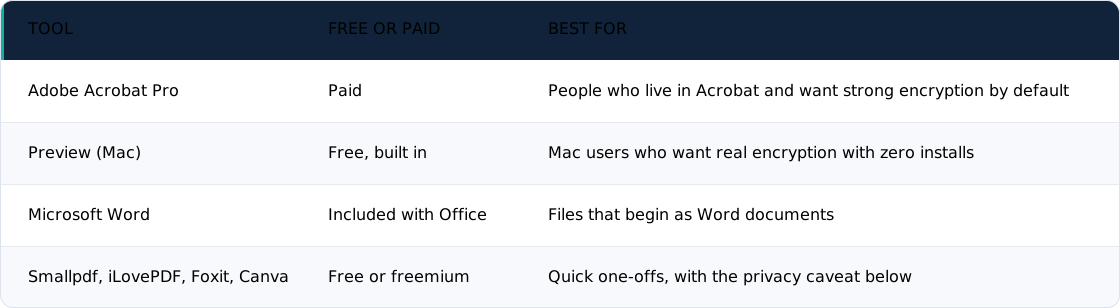
If the file starts life as a Word document, you can lock it on the way out. In Microsoft Word, choose File > Save As, pick PDF, click Options, and check "Encrypt the document with a password." Many PDFs are born in Word, so this saves you a step.
Free browser tools to password protect a PDF
Prefer the browser? Free web tools such as Smallpdf, iLovePDF, Foxit, and Canva will all add a password in seconds. They are convenient. They also come with a privacy caveat that deserves its own section, so hold that thought.
The password type nobody explains (and why it's the whole game)
Here is the fact that changes everything: a single PDF can carry two completely different passwords, and only one of them actually keeps people out.
The first is the open password (officially called the User Password). It locks the contents of the file behind real cryptography. Modern Acrobat uses AES-256, the same standard that guards banking traffic. Without this password, the file's bytes are scrambled and completely useless.
The second is the permissions password (officially the Owner Password). It doesn't lock the file; it only asks the viewing software, politely, to restrict printing, editing, or copying. Security experts call it a "gentleman's agreement," because any PDF reader is free to ignore the request, and free online tools strip it in seconds.
Read that again, because it's the crux of the whole article. If you set only a permissions password, the PDF is technically encrypted, but the software uses a blank space as the decryption key. It's effectively lying on the doormat: any viewer will decrypt it automatically, and anyone can peel off the restrictions with a free "unlock PDF" tool to read every word. Think of it as the "Do Not Disturb" hanger on a hotel door, not the deadbolt behind it.
If you are the curious type, Security Stack Exchange has a great breakdown on exactly how PDF readers silently bypass these restrictions.
Quick check before you send anything: set the open password, not just the permissions one, and confirm your tool is using AES-256 rather than outdated RC4 encryption. If you want the deeper background, we cover how much encryption is actually enough elsewhere on the blog.
Even the "real" lock leaks
So you set the open password and confirmed AES-256. You are in far better shape than most people. You are also not finished, because a real lock can still leak in three ways.
First, weak passwords fall almost instantly. Encryption is only as strong as the secret behind it. According to annual benchmarking by security researchers at Hive Systems, modern arrays of high-end GPUs can chew through simple, predictable, or short passwords in milliseconds. The AES-256 encryption label on your file doesn't do the heavy lifting. Your password does. If you give the lock a cheap key, it opens just the same.
Second, legacy encryption is a trap. Older PDFs and older software quietly default to 40-bit RC4 encryption to maintain compatibility with legacy systems. This scheme is so mathematically weak that an attacker doesn't even need to guess your password. 40-bit encryption has just over one trillion possible keys; a modern standard laptop can try every single one of them in a few hours, bypassing your clever password entirely. The takeaway is simple: if your software offers an "Acrobat 4 or 5 compatibility" option, do not pick it. Choose the newest, strongest setting available.
Third, the free online tool itself can be the leak. This is the distinction most guides skip. Some web tools encrypt files entirely in your browser using local code, meaning your file never leaves your device. Others upload your document to a third-party server, process it there, and send it back. For a birthday invitation, who cares. For an NDA, a tax document, or an HR file, that upload is the exposure. Before you use a web tool for anything sensitive, look for language like "in your browser," "client-side," or "100% offline." If a tool does not explicitly state where the work happens, assume your file is going for a ride.
None of this means online PDF tools are evil. It just means the underlying technology matters more than the brand name. Know which kind of tool you are using, and match it to how sensitive your file actually is.
The mistake that cancels your encryption entirely
Now the big one, and the one almost everyone is guilty of. You encrypt the PDF with a strong open password. You feel responsible. Then you email the file and type the password right underneath it, or fire off a quick follow-up message with the password in it.
Congratulations: you just undid all of it. The lock and the key are now sitting in the same place.
The "I will send the password in a separate email" move feels safer, but it usually is not. If an attacker has compromised the inbox, or is intercepting mail in transit, both messages land in the same compromised spot. Two emails to the same account is still one target. You mailed someone a locked box and taped the key to the lid.
Now scale it up, because this is where it stops being a personal tip and becomes a business problem. Picture an operations lead sending thirty client contracts a week, an HR manager mailing offer letters, a finance team firing off invoices. Every one of them is a person under deadline pressure, doing the natural, convenient thing. The weak link was never the PDF. It is credential handling at scale.
So what does good look like? Three rules. Deliver the password through a different channel than the file. Use a strong, generated password rather than something you can type from memory. And never reuse the same PDF password across every recipient, because one leak should not open every file you have ever sent.
How teams should actually do this
The fix is not "try harder to remember." It is a system, and it has three parts.
Start with out-of-band delivery, which is a fancy way of saying "send the password somewhere other than the file." A phone call works. An approved messaging channel works. Better still is a one-time secret: a link that shows the password exactly once and then destroys itself, so the credential never sits in an inbox waiting to be found later. If the idea is new to you, we wrote a full explainer on what a one-time secret is and how to send one safely.
Next, generate strong, unique passwords instead of "Invoice2026," and store them somewhere the whole team can reach. This is the shared-vault argument in a sentence. When the password lives only in one person's head or sent-mail folder, access dies the moment that person is on vacation. A shared vault keeps the file openable without keeping the password lying around in plain text. Our guide to securely sharing passwords with your team covers the workflow, and if you want a laugh and a warning at once, the worst passwords of 2025 shows exactly what not to generate.
Finally, think about access that outlives one inbox. For recurring recipients, a regular vendor or a long-term client, a shared credential in a team vault beats re-emailing a password every single time and hoping nobody screenshots the thread.
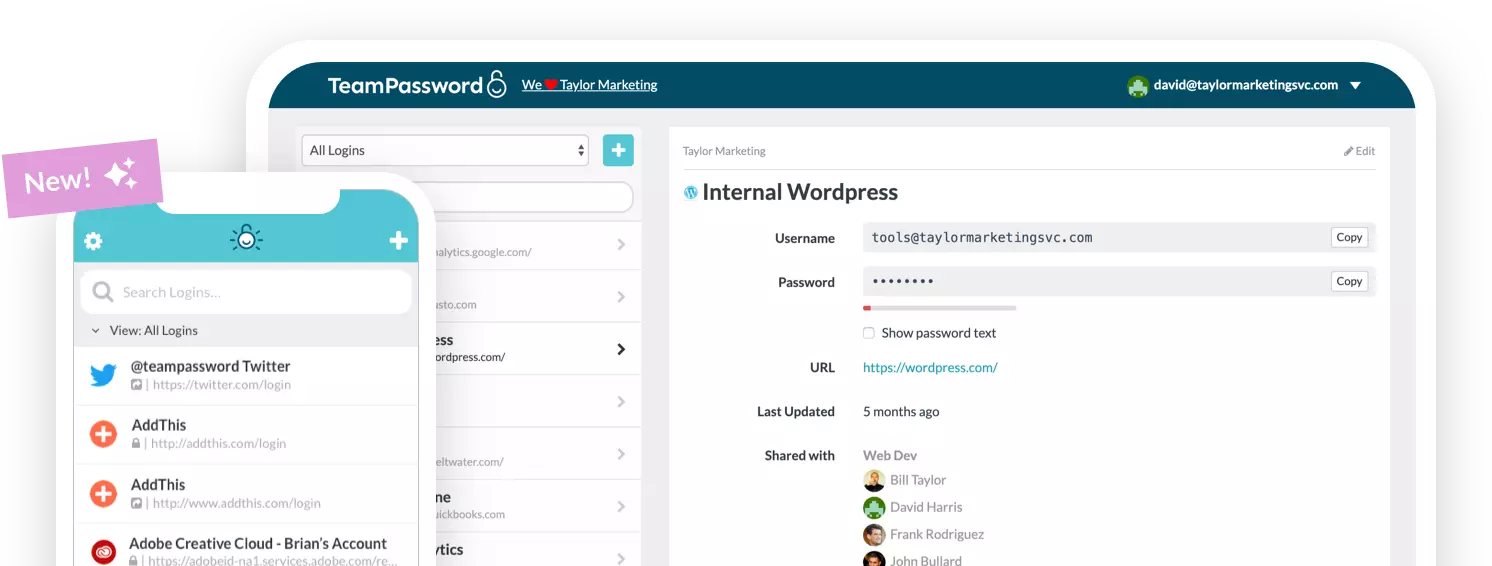
This is the exact problem TeamPassword is built for. Teams use it to generate strong passwords, store them in a shared vault so access does not vanish when someone is out, and hand them over as one-time, single-view links instead of pasting them under an attachment. It is not a pitch so much as a description of the three rules above, turned into something you can actually do on a Tuesday.
Quick reality check: is a PDF password even the right tool?
Before the sign-off, a moment of honesty. A PDF password is fine for casual confidentiality: keeping a document from a curious coworker, adding a speed bump, sending your accountant one tax form. It is not a substitute for encrypted storage, real access controls, or a secure sharing platform when you are moving genuinely sensitive material at volume.
If you regularly send regulated or high-stakes files, think financial, legal, or medical records, the file-plus-password pattern does not scale securely. Secure sharing links, access-controlled portals, and proper email encryption are the grown-up options. The best PDF password is the one paired with a strong secret and a safe way to hand it over. Both halves matter.
Both halves, handled
The encryption on a PDF is only ever as strong as the password behind it and the way that password travels. Set a weak password, or send it in the same thread as the file, and the lock is decorative.
TeamPassword handles both halves for your team. Generate strong passwords, keep them in a shared vault so access does not disappear when someone is out of office, and send them as one-time links that vanish after a single view instead of living forever in an email thread. If that sounds like a problem you have been solving by hand, give it a try and let the system carry the part people keep getting wrong.