
To clear your clipboard in Windows 10 or 11, press Windows key + V and select Clear all. To wipe everything — including what's synced to Microsoft's cloud clipboard — go to Settings > System > Clipboard and click Clear.
That's the short answer. Below, we walk through each method step by step, including how to delete a single copied item, clear the clipboard with a keyboard shortcut or command, and what clearing does (and doesn't) remove. The clipboard is a handy feature, but its history can hold sensitive information like passwords and card numbers, so it's worth knowing how to manage it.
How to Clear Your Clipboard History with Win + V
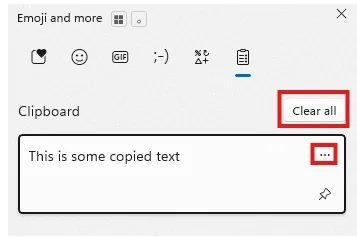
The clipboard history panel is the fastest way to view and clear everything you've recently copied, including text and images:
- Press the Windows key + V. A small window opens listing your recently copied items.
- Select Clear all. On Windows 11 it's at the top of the panel; on Windows 10, click the three dots (...) on any item and choose Clear all from there.
- The list is now empty, except for any items you've pinned.
How to delete a single clipboard item
If you only want to remove one specific item instead of everything:
- Press the Windows key + V to open clipboard history.
- Click the three dots next to the item you want to remove.
- Click the Trash icon.
How to Clear the Clipboard from Windows Settings
The Settings method is the most thorough one, because it also clears the clipboard data Microsoft stores in the cloud when syncing is on. The steps are the same on Windows 10 and 11:
- Open the Settings app (Windows key + I).
- Go to System > Clipboard.
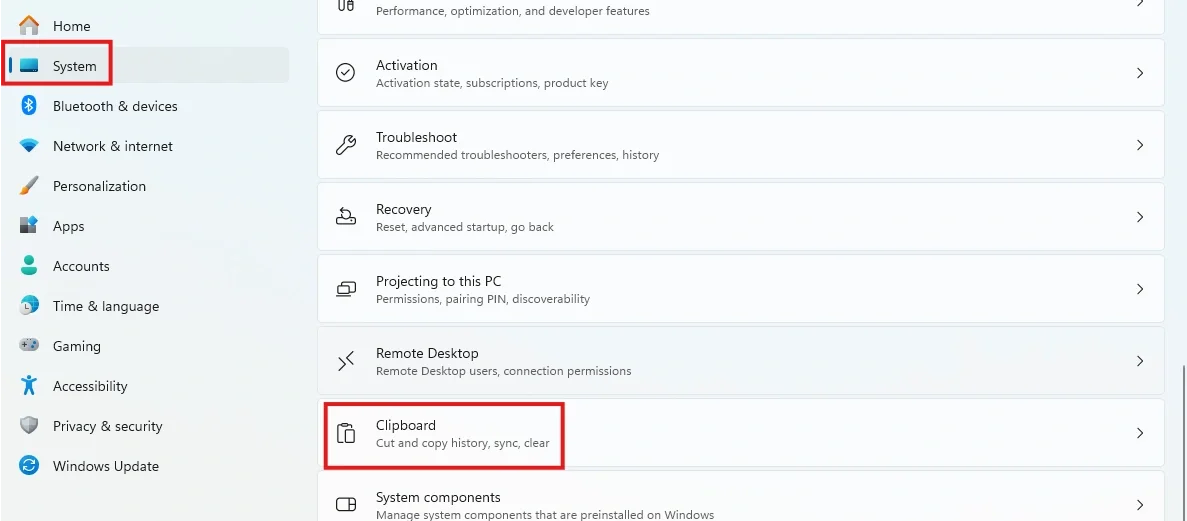
- Under Clear clipboard data, click the Clear button.
This removes everything — from your device and the cloud — except pinned items.
How to Clear the Clipboard with a Keyboard Shortcut or Command
For those who want to clear their clipboard regularly without clicking through menus, you can create a simple shortcut that runs a command to clear the current clipboard. Here's how:
- Right-click on your desktop and select New > Shortcut.
- In the location field, type:
cmd /c "echo off | clip"and click Next. - Name the shortcut something descriptive like "Clear Clipboard" and click Finish.
Now, whenever you double-click this shortcut, your clipboard will be instantly cleared.
To make it a true keyboard shortcut, right-click the new shortcut, select Properties, click in the Shortcut key field, and press your preferred combination (for example, Ctrl + Alt + C). From then on, that keypress wipes the clipboard.
Prefer PowerShell? Run Set-Clipboard -Value " " to overwrite the clipboard with a blank space. (Note that Set-Clipboard $null throws an error in modern PowerShell, so use the blank-space form.)
Windows 10 vs Windows 11: Clipboard Differences
The clipboard works the same way on both systems — same Win + V panel, same Settings page, same 25-item history limit, and history resets when you restart your PC (pinned items survive). The main visible difference is where Clear all lives: at the top of the panel on Windows 11 versus behind an item's ... menu on Windows 10. Windows 11's panel also adds emoji, GIF, and symbol tabs alongside your copied items.
One important note: Windows 10 reached end of support on October 14, 2025. Everything in this guide still works on Windows 10, but the OS no longer receives security updates — which makes any sensitive data sitting in your clipboard a bigger liability, and is a good reason to plan the move to Windows 11.
What Clearing Your Clipboard Does NOT Delete
Clearing your clipboard history isn't always a complete wipe. Be aware of three gaps:
- Pinned items. Both Clear all and the Settings Clear button leave pinned items untouched. You have to unpin and delete those manually from the Win + V panel.
- Items already synced to other devices. If Sync across your devices is turned on (Settings > System > Clipboard), copied items may already exist in the local history of your other signed-in PCs. Clearing from Settings removes data from your device and Microsoft's cloud clipboard, but run Clear all on each device to be thorough — or turn sync off entirely if you don't use it.
- Data captured elsewhere. Anything you already pasted into a document, chat, or note is out of the clipboard's hands, and third-party clipboard manager apps keep their own separate history.
Why Clear Your Clipboard History?
You might wonder why you'd want to clear your clipboard history. The main reason is security. If you've copied sensitive information like passwords, credit card numbers, or personal messages, that data remains in your clipboard history. Anyone with access to your computer could potentially view it. For a deeper dive into password security, check out this ultimate guide to password security.
Another reason is to prevent errors. Sometimes, outdated or corrupted clipboard items can cause issues in certain applications. Clearing your clipboard can help resolve these problems.
How to Disable Clipboard History Entirely
If you don't use the clipboard history feature, you can disable it entirely. Here's how:
- Open the Settings app (Windows key + I).
- Go to System > Clipboard.
- Toggle the switch for Clipboard history to off.
If you ever want to re-enable it, just follow the same steps and toggle the switch back on.
Frequently Asked Questions (FAQ)
What is the keyboard shortcut to clear the clipboard in Windows?
Press Windows key + V to open clipboard history, then select Clear all. There is no single built-in key combination that wipes the clipboard directly, but you can create a desktop shortcut that runs cmd /c "echo off | clip" and assign it a hotkey, giving you a one-keypress way to clear the current clipboard.
Does clearing clipboard history on one device clear it on my other devices?
Partially. If Sync across your devices is enabled, clearing from Settings > System > Clipboard removes everything except pinned items from your device and from Microsoft's cloud clipboard. However, items that already synced to another device sit in that device's own local history, so run Clear all on each device to be thorough.
How do I clear just the current clipboard item without opening history?
The quickest trick is to copy something harmless, like a single space, which overwrites the current clipboard contents. For a proper wipe, run echo off | clip in Command Prompt or Set-Clipboard -Value " " in PowerShell, or use a desktop shortcut that runs the command for you.
Do these steps still work after Windows 10 end of support?
Yes. Windows 10 reached end of support on October 14, 2025, but the operating system and its clipboard history feature keep working exactly as before. The difference is that Windows 10 no longer receives security updates, which makes leaving sensitive data in the clipboard even riskier — one more reason to clear it regularly and plan an upgrade to Windows 11.
Does macOS have a clipboard history feature?
By default, macOS does not have a built-in clipboard history feature like Windows. It only stores the most recently copied item. To get clipboard history functionality on a Mac, you'll need to use a third-party application like Paste, CopyQ, or Raycast.
What about Linux? How can I get clipboard history?
Similar to macOS, most Linux distributions don't come with a clipboard manager out of the box. However, there are many excellent open-source options available, such as CopyQ, Diodon, and GPaste. These can be installed through your distribution's package manager.
Is it safe to use a third-party clipboard manager?
While many third-party clipboard managers are safe and offer advanced features, it's crucial to choose a reputable one. Since these apps will have access to everything you copy, be sure to download them from official websites or trusted sources. Look for open-source options that have been reviewed by the community.
Will clearing my clipboard history delete pinned items?
No, clearing your clipboard history will not delete any items you have pinned. Pinned items are meant to be saved for later use and must be manually unpinned and deleted.
Secure Your Business with TeamPassword
TeamPassword is the user-friendly and affordable password manager built for the demands of modern teams.
Get robust security features that are simple to manage, including enforceable 2FA, detailed activity logs, and an integrated TOTP authenticator. Empower your team with unlimited records, flexible user-roles, and a seamless Google sign-in to get started in minutes.
Protect your entire business for a price that makes sense, with plans starting at just $2.41/user/month.