Password-protecting an Excel file takes about thirty seconds. Understanding what that password actually protects takes about three minutes, and it is the part almost nobody explains.
The quick answer: how to password protect an Excel file
Windows (Microsoft 365, 2024, 2021, 2019, 2016)
- Open the workbook you want to protect.
- Go to File > Info.
- Select the Protect Workbook box, then choose Encrypt with Password.
- Type a password in the Password box and select OK.
- Re-enter the same password in the Reenter Password box and select OK.
- Save the file. The next time anyone opens it, Excel will ask for the password.
Two things to know before you close the dialog. Passwords are case-sensitive, and Microsoft cannot retrieve a forgotten one. There is no reset link and no support ticket that gets it back. Pick something you will not lose. (Microsoft)
Mac (Microsoft 365 for Mac and recent versions)
- Open the workbook.
- Go to the Review tab and select Protect Workbook.
- Enter a password under Set a password to open this workbook. That is the one that encrypts the file.
- Confirm the password, then save.
On a Mac, that same dialog also offers a password to modify and options to protect the workbook's structure, all in one window. Keep an eye on which field you are typing into, because they do very different jobs. More on that in a moment.
Excel for the web
Here is the real reason the "Encrypt with Password" button is missing in your browser: Excel for the web cannot add or remove password protection at all. To encrypt a file, you have to open it in the desktop app.
The part that trips people up is that the browser is not helpless. If a workbook is already encrypted, you can open it and even edit it in Excel for the web as long as you know the password. Protected worksheets are the exception, and can only be viewed there, not edited. (Microsoft) So if you need to lock a file, do it once on the desktop, and the protection travels with the file everywhere else.
The three "protections" Excel gives you, and which one actually secures the file
This is where most how-to articles stop and most confusion begins. Excel hands you several features with reassuring names, and they sound like variations on the same idea. They are not. Here is what each one really does.
Encrypt with Password is the file-level lock you set in the steps above. It scrambles the entire file, and a password is required just to open it. This is the only option on this list that actually keeps someone from reading your data.
Protect Workbook Structure, reached through Review > Protect Workbook, stops people from adding, moving, deleting, hiding, or renaming sheets. It does nothing to hide the contents. Anyone who can open the file can read every cell in it. (Microsoft) It protects the shape of the workbook, not the secrets inside it.
Protect Sheet, under Review > Protect Sheet, locks specific cells so they cannot be edited. It is useful for stopping a colleague from fat-fingering a formula. It is not security, and Microsoft says so directly: "Worksheet level protection isn't intended as a security feature. It simply prevents users from modifying locked cells within the worksheet." (Microsoft)
There is also a fourth flavor, a password to modify, that lets anyone open the file but asks for a password before they can save changes. It is a courtesy lock. The data is fully visible the whole time.
Now the punchline. Two of these, sheet protection and structure protection, can be removed in about a minute. They are not encryption. They are stored as a simple flag inside the file's own structure, so they can be stripped with widely available free tools. This is well documented, and I am not going to hand you the steps, but the takeaway is what counts: if your goal is to stop someone from seeing the data, "Encrypt with Password" is the only feature that does it. Everything else is a "please don't touch" sign, not a lock. (Microsoft overview)
How strong is Excel's encryption, really?
Reassuringly strong, as it happens. Modern Excel, meaning 2016 and later, encrypts files with AES using a 256-bit key, the same class of encryption trusted for banking and classified data. It hashes your password with SHA-512 and runs it through 100,000 rounds of processing before deriving the key, which is specifically designed to slow down anyone trying to guess it by brute force. (Microsoft) Nobody is cracking AES-256 itself. The math is not the weak link.
The weak link is almost always the password. A spreadsheet locked with "Spring2024" is not meaningfully protected, because password-recovery tools chew through common and predictable passwords quickly. The 256-bit encryption is only as strong as the phrase guarding it. A long, random, unique password is what turns that impressive algorithm into actual protection. A memorable-but-obvious one turns it into theater. (If you want the deeper version of this, we wrote about what password encryption is and how much is enough.)
One caveat keeps this honest. That strength applies to modern .xlsx files. If you save in a legacy format, such as the old .xls from Excel 97 to 2003, you get old-grade protection that is far easier to break. Stick with the current format and you get the good encryption.
How to remove or change the password, and the forgotten-password reality
Changing or removing a password you know is easy. Open the file with the current password, return to File > Info > Protect Workbook > Encrypt with Password, delete the characters in the box, select OK, and save. On a Mac, reopen the Review > Protect Workbook dialog and clear the password field. Want to do it in the browser? You cannot. Open the file in desktop Excel first.
Forgetting the password is a different story, and it is worth being blunt about it. There is no recovery. Microsoft cannot retrieve or reset it for you. (Microsoft) Third-party "Excel password recovery" tools do exist, but understand how they work before you trust one. They succeed by guessing, which means they crack weak passwords and fail against strong ones. That is not a flaw in the tool. It is the whole point of a strong password, and it cuts both ways: the same class of tool that might rescue your file is exactly what an attacker would point at it.
Which raises a question that matters more for a business than for an individual. For one person, "there is no recovery" is a personal headache. For a team, it is an operational risk. What happens when the one person who knew the password leaves?
Where a password-protected spreadsheet quietly fails a team
A locked file can work fine for a single person guarding a single document. Hand the same approach to a team and the cracks show up fast.
The first crack appears the moment you share it. A file password only helps if the right people have it, so you send it to them, and it goes wherever your messages go. Slack, email, a text, a sticky note on a monitor. You have now created a second, unprotected copy of the key and scattered it across channels you do not control.
Then there is revocation, or the lack of it. Once someone knows the password, they know it forever. You cannot un-tell a person a secret. If they leave the company or move teams, your only real option is to re-encrypt the file with a new password and redistribute it to everyone who still needs access, which restarts the whole leaky process.
There is also no audit trail. A single shared password cannot tell you who opened the file, when, or from where, because as far as the file is concerned there is only one user: whoever has the password. Everyone wears the same nametag.
Finally, version sprawl. People email the workbook around, and soon there are six copies floating in inboxes, some encrypted, some not, some still carrying last quarter's password. The protected version and the version people are actually using drift apart until nobody is sure which is real. (The safest patterns for sharing access without scattering the keys look nothing like emailing a locked file.)
The bigger red flag, and the fix
Step back and ask the question the password distracts you from: what is actually inside that spreadsheet? For a rough draft budget, an encrypted file is perfectly reasonable. For anything sensitive, the lock can become a false sense of security, because it protects the file while doing nothing about all the ways the file gets copied, shared, and left behind.
And there is one version of this that is a genuine red flag. If the spreadsheet is being used to store passwords or logins, the classic shared "IT credentials.xlsx" that so many teams keep, then password-protecting it means guarding a pile of secrets with one more secret. A secret that everyone shares, that you cannot revoke, and that leaves no trace of who used it. Every weakness from the last section now applies to your most sensitive data all at once. A spreadsheet is one of the most common and most dangerous places to keep passwords, and a password on the file does not change that.
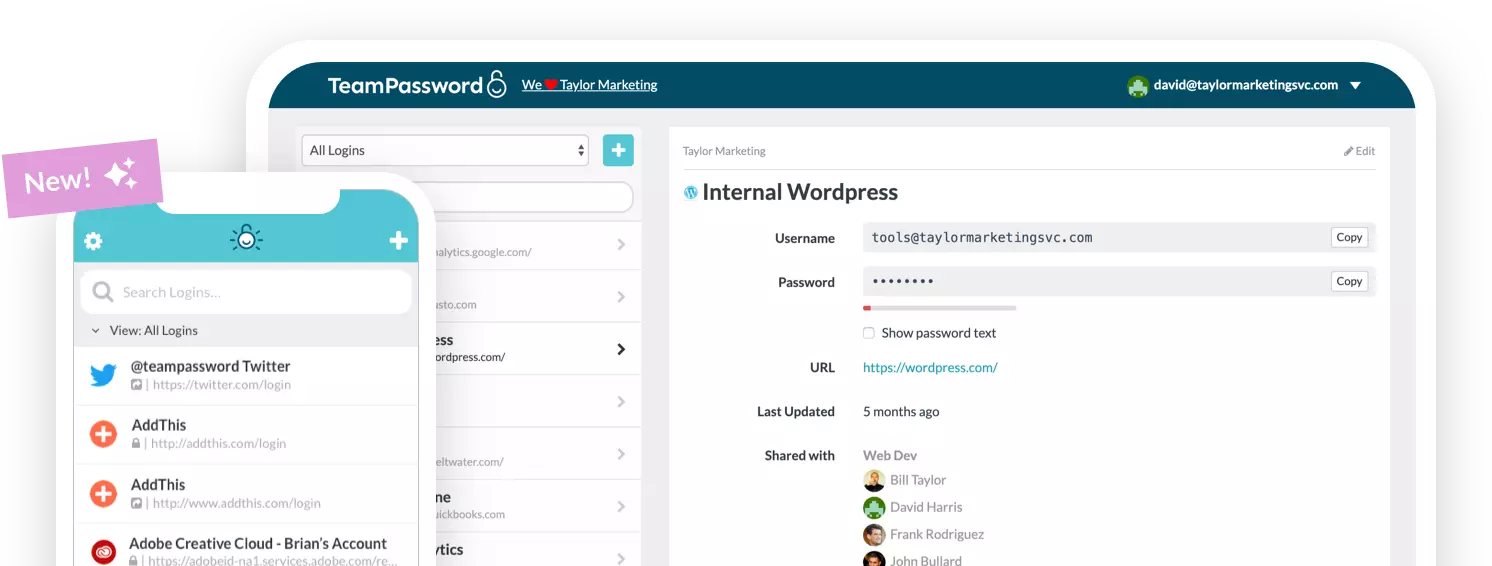
The fix is not a better spreadsheet password. It is a tool built for the job. A dedicated password manager answers each of those four failures directly. Instead of one shared secret, every person gets their own access. Instead of re-encrypting and re-sending a file when someone leaves, you revoke their access in one click. Instead of guessing who opened what, you get a real record. Instead of six copies in six inboxes, there is one source of truth. That is exactly what TeamPassword is built for, especially for small teams and IT leads wrangling shared logins.
Gain complete control and peace of mind with robust features designed for team collaboration:
- Integrated TOTP Authenticator: Generate time-based one-time passcodes directly within TeamPassword, eliminating the need for separate authenticator apps on your phone.
- Enforceable 2FA: Mandate two-factor authentication for every user across your organization, ensuring a consistent and high standard of security.
- Detailed Activity Logs: Maintain full visibility with a complete audit trail of who accessed what and when, perfect for security audits and accountability.
- Unlimited Records & Groups: Store an infinite number of logins and organize them into logical groups by team, project, or client for easy access and management.
- Multiple User-Roles: Assign granular permissions to control exactly who can view, edit, and create credentials, ensuring access is granted only where it's needed.
- Free Google Sign-In: Simplify onboarding and daily access with secure, one-click login using your team's existing Google accounts.
- One-Time Share: Securely share a single password with an external contractor or partner for a limited time, without giving them permanent access to your records.
With straightforward plans starting at just $2.41 per user per month, TeamPassword is the most effective and affordable way to protect your business.
Encrypting a spreadsheet is a fine answer to "how do I lock this file." It is the wrong answer to "how does my team share secrets safely." If your protected spreadsheet is really a password list in disguise, then the file was never the thing that needed a lock. The credentials were.