5 Best Password Managers for Samsung Devices

Your Samsung phone has access to your email accounts, work tools, banking apps, and personal data in one place. If any of those accounts are "protected" by passwords that are weak or reused, a single breach can expose far more than most people think.
Samsung users often assume built-in tools are enough, especially on modern Android devices. That might be true for some users, but not everyone has the same needs. The right password manager for your Samsung smartphone keeps passwords secure across apps, browsers, and devices while making everyday logins faster and safer.
TeamPassword is the best password manager available for Samsung. Don’t believe us? Sign up for our free trial to unlock 30% off your first year today and try for yourself.
Table of Contents
What is a password manager, and do you need one?
A password manager is a tool that stores your usernames and passwords in an encrypted vault. Then, it fills them in for you when you log in, so you do not need to remember dozens of credentials.
Most Samsung users already manage dozens of accounts across apps, browsers, and devices. If you reuse passwords or save them in your browser, a password manager gives you stronger security with less effort.
For the vast majority of people, the answer is yes: If your Samsung Galaxy connects to email, work tools, social media, cloud storage, or even banking apps, a password manager quickly becomes a basic safety tool rather than an optional extra.
Benefits of using a password manager
Using a password manager on your Samsung device makes your digital life easier and safer. It also reduces the chances of mistakes that lead to account breaches.
Here are the main advantages users find when they sign up for a password manager:
- Strong, unique passwords: A password manager generates long, random passwords that are hard to guess or crack.
- One secure password vault: You only need to remember one master password instead of dozens of login details.
- Faster logins: Autofill saves time by entering credentials automatically in apps and browsers.
- Cross device access: You can access your passwords on your phone, laptop, and tablet without copying or syncing files manually.
- Better security for apps: A password manager protects app logins the same way it protects browser logins.
- Reduced reuse risk: It prevents you from using the same password across multiple accounts, saving users from their own worst instincts.
- Secure sharing: You can share login access safely without revealing the actual password.
- Built in multi-factor authentication: Many password managers include Time-based One-Time Password (TOTP) to add a second security layer.
- Easier recovery: If you get a new phone, your password manager restores your vault without rebuilding everything.
- Stronger team control: Businesses can control access and monitor password usage across teams.
Questions to ask yourself before choosing a Samsung password manager
Choosing a password manager for Samsung is not just about features. It is also about how you use your phone, your browser, and whether you use your device for work.
Here are four questions to ask before choosing a password manager for your Samsung Galaxy:
- Do you use more than one device brand or operating system?
- Do you switch between browsers or rely on multiple apps?
- Do you use your Samsung device for work or business?
- Do you need to share accounts securely?
If you answer yes to any of these questions, then you need more than Samsung Pass offers.
Do you use more than one device brand or operating system?
If you only use your Samsung Android phone, a simple password manager may be enough. If you also use a laptop, tablet, or work computer, you need a password manager that works across all devices.
Otherwise, you end up with separate password lists and extra effort.
Do you switch between browsers or rely on multiple apps?
If you use more than one browser or use many apps, a password manager that works across browsers and apps is essential. Some tools only work well inside one browser, which limits how useful they are on Samsung devices.
Do you use your Samsung device for work or business?
Business use increases the risk of phishing and account theft because work accounts have more value. If you use your Samsung device for work, you likely need features like auditing, team sharing, and access controls that consumer tools do not provide.
Do you need to share accounts securely?
If you share accounts with colleagues or family members, you need a safe way to give access without sharing the password. Sharing passwords over text or email creates a security risk and makes it hard to track who has access.
5 best password managers for Samsung devices
The following password managers are ranked based on how well they support Samsung users, how they handle cross device access, and how they meet business needs. Each option has strengths, but some are better for basic use and others for teams.
Here are the five best Samsung password managers:
- TeamPassword
- Samsung Pass
- Google Password Manager
- Bitwarden
- 1Password
TeamPassword
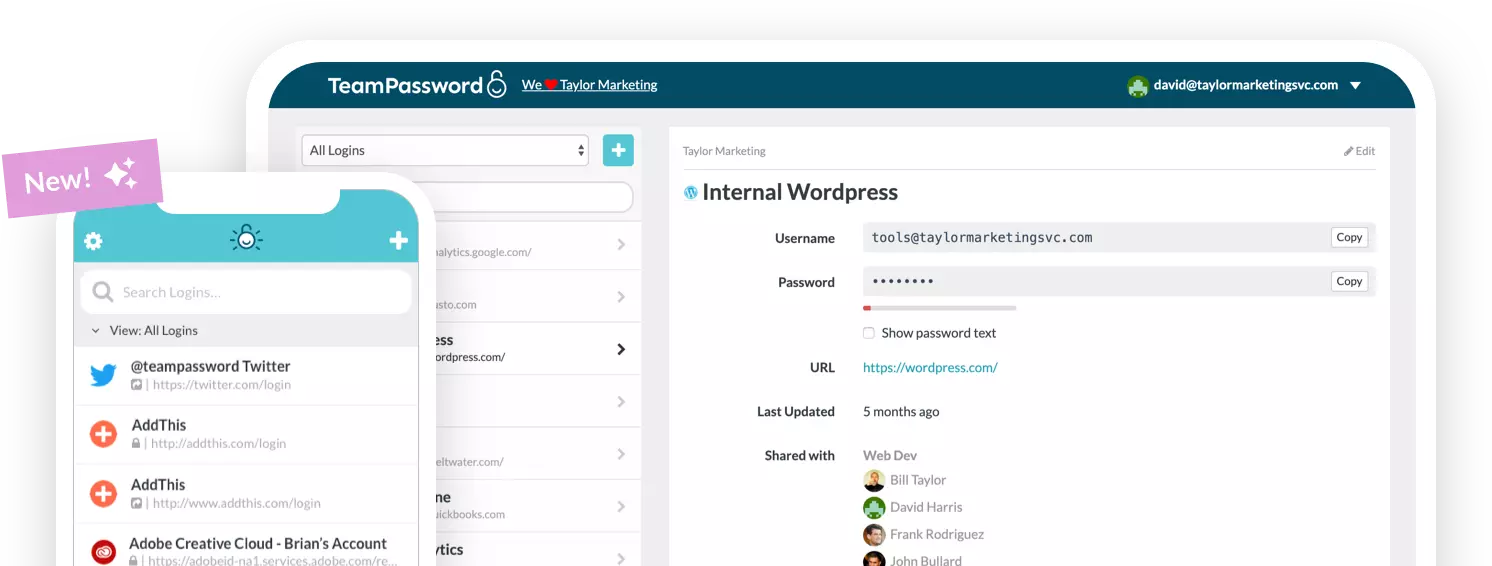
TeamPassword works across devices, browsers, and operating systems so you only have one secure password vault. This means your passwords stay consistent whether you are using a Samsung phone, a Windows laptop, or a Mac.
TeamPassword also includes built-in TOTP, which makes multi-factor authentication easier to manage without relying on separate apps. You can generate one-time codes directly inside the password manager, which reduces setup time and keeps everything in one place.
The strongest advantage for many users is secure account sharing. TeamPassword allows teams to share access to accounts without revealing the actual password. This helps businesses reduce the risk of password leaks while still keeping workflows fast and efficient.
TeamPassword also offers features that support business security and auditing, such as activity logs and email alerts. These tools make it easier to monitor who accesses shared accounts and when changes occur.
If you want a password manager that scales from personal use to business use, TeamPassword is the best option for Samsung devices.
Samsung Pass
Samsung Pass is built for Samsung devices and is convenient for basic users who want simple password storage. It integrates smoothly with Samsung phones and makes logins quick without requiring a separate app.
The main limitation is that it is tied to the Samsung ecosystem. If you switch to a different phone or use a different browser, your passwords may not move with you. This makes it less suitable for people who use multiple devices or different operating systems.
Samsung Pass also lacks many advanced features that businesses need, such as secure account sharing and auditing tools. For users who only need basic password storage on one Samsung phone, it is a reasonable option.
Google Password Manager
Google Password Manager is a simple and free option that works well for users who rely on Chrome and Google services. It is easy to use and works smoothly across Android devices and Chrome browsers.
However, it is tied closely to your Google account. If your Google account is compromised, it can put all stored passwords at risk. This is a major concern for business use, where email accounts are common targets.
Google Password Manager also does not offer secure account sharing or enterprise-grade controls. If you use multiple browsers or need to share access with teammates, a full password manager is a better choice.
Bitwarden
Bitwarden is a popular open-source password manager that appeals to users who value transparency and control. It supports multiple devices and browsers, and it offers a free tier that works for many users.
The free version can require more technical setup, especially for advanced sharing or team features. Therefore, users who are not comfortable with IT tasks may find it harder to configure.
Bitwarden is a solid option for users who want an open source tool and are willing to manage setup. For businesses and users who want a simpler experience, TeamPassword may be easier to use.
1Password
1Password is known for a polished user experience and strong security features. It supports multiple platforms and provides tools that help manage passwords and secure notes.
The main downside is cost. 1Password is more expensive than many alternatives, which can make it a harder choice for individuals and small teams. Businesses may still find it valuable, but the price is an important factor.
1Password is a good option for users who want a premium experience and are comfortable paying for it. However, for most Samsung users and businesses, a more cost-effective solution may be a better fit.
TeamPassword is the best password manager for Samsung
TeamPassword is the best password manager for Samsung because it works across devices, browsers, and operating systems. It keeps all your passwords together in one secure vault, so you do not need separate lists for work and personal accounts. The built-in TOTP support makes multi-factor authentication easy, and secure account sharing helps teams stay productivity without risking password leaks.
For Samsung users who need a password manager that scales from personal use to business use, TeamPassword offers the strongest combination of security, convenience, and control.
TeamPassword is the best password manager for your Samsung Galaxy. Don’t believe us? Sign up for a 14-day free trial today and try for yourself.
Posts Recomendados
How to Make a Good Username | Create a Unique and Secure Username
See the best way to come up with a new username. We break down types of usernames, why ...
The 5 Best Password Managers for Nonprofits (2026 Review)
Nonprofits have unique needs in software, from lower budgets to less tech-savvy staff or no dedicated IT staff. ...
Top 10 cybersecurity threats for nonprofits (and how to prevent them)
Here’s what you need to know about cybersecurity threats for nonprofits, the top risks they face, and practical ...
Cybersecurity for Nonprofits: Keeping Your Nonprofit Secure
Cybersecurity is critical for all organizations, including nonprofits. Learn more in this guide about cybersecurity for nonprofits.
Fortaleça a segurança das suas senhas
O melhor software para gerar e gerenciar suas senhas corretamente.