By default, the ability to export your credentials from NordPass is disabled.
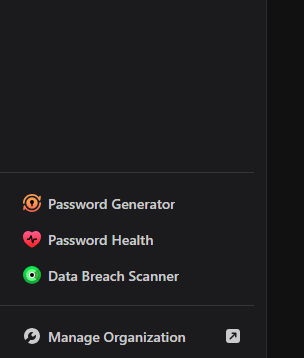
Step 1: Go to Manage Organization. If in your password vault, you can find the link in the bottom left. Or you can use: https://panel.nordpass.com/login
Enter your master password when prompted.
On the left-hand side, select Policies, then scroll down until you see Item Exporting.
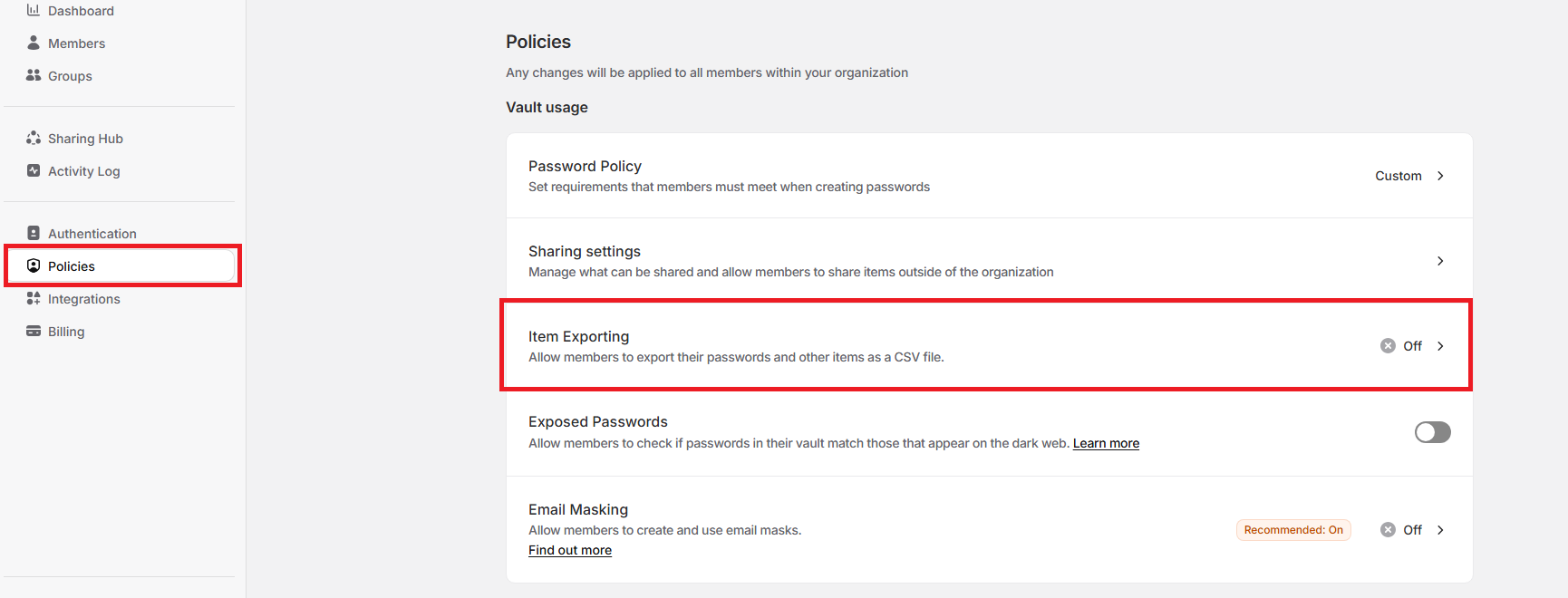
Click this, and select who should be able to export. You will see a popup warning you that exporting credentials can pose a risk. Click "Yes, I Understand the Risk."
Now that this is turned on, you have to go back to your password vault.
- In the top left, click the Settings gear icon.
- Scroll down to Export items.
- Click Export - you may have to re-enter your master password.
Your password will be downloaded into a CSV file. Open this CSV in excel or similar.
The NordPass export tool dumps all its fields, including for credit cards and other login types, in the same CSV. For example, my test CSV has 24 fields. Most of these will be ignored/removed, since TeamPassword does not support all of those fields.
Next, go to your TeamPassword account. If you have not already created Groups (that match your NordPass Shared Folders), do so now.
NordPass Shared Folders are equivalent to TeamPassword Groups. TeamPassword uses Groups as a way to organize and share groups of passwords with the appropriate users. Read the linked articles for each if you need further guidance.
TeamPassword does not support nested groups at this time.
Now that you’re created Groups, you’re ready to get the TeamPassword import template.
Download TeamPassword import template
From your TeamPassword home dashboard:
- Click your avatar in the top right
- Under Manage Teams, click the name of your organization
- In the left-hand menu, click Import Records
- Click Download Template
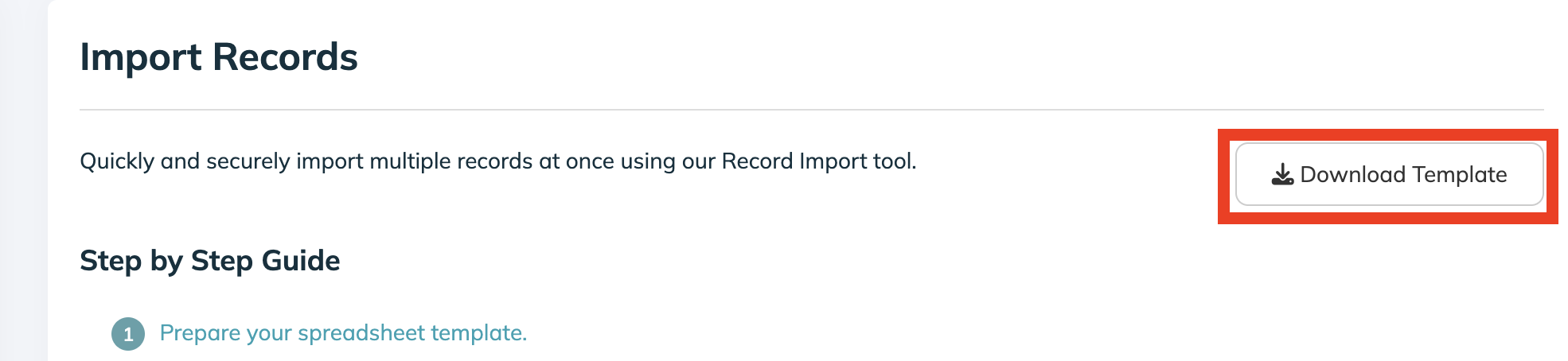
Open this template CSV in a new tab or page of Excel or Google Sheets:

At this point, read the import guide! Especially Step 3: Format Your CSV.
During the import process, a single record can be added to three different groups. Later, within the TeamPassword app, you can add a record to as many groups as you want.
If the organization and group(s) columns are left blank (columns G, H, I, and J in the above screenshot), the record is imported into your Private vault.
Move vault data from NordPass to TeamPassword
Now, let’s copy your data from your NordPass export CSV to the TeamPassword import template. Most of the fields map in a self-explanatory way:
- name > name
- url > url
- username > username
- password > password
- note > notes
- shared_folder > group1 (or group2 or group3)
Other information such as phone numbers, addresses, etc should be put in notes.
When ready, click Import Web Logins and follow the steps to upload the TeamPassword import CSV. Again, I'll refer you to the Import Help Article for step-by-step instructions.
Credit Cards
If you need to import credit cards, a separate template can be found by scrolling to the bottom of the import page.
Click Import Credit Cards:
In the top right, click Download Example:
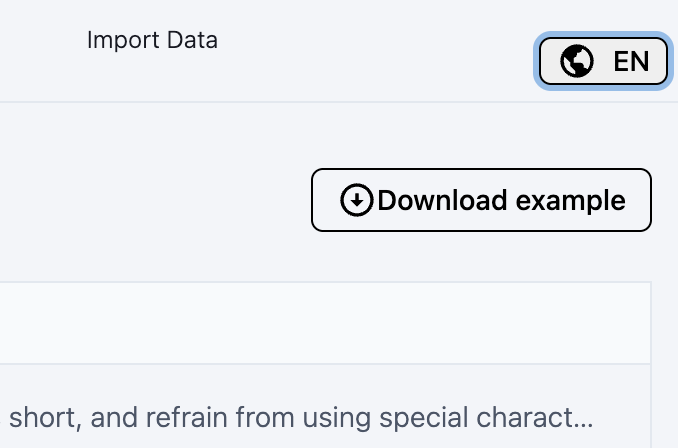
Open this in Sheets/Excel, and move your credit card info from NordPass to this template to be uploaded to TeamPassword.
NordPass Folders
In TeamPassword, all of your private records are stored in a single private folder. TeamPassword does not support the creation of Private Groups or nested groups/folders.
Therefore, if you have multiple private NordPass folders, and you wish to import these records into TeamPassword as records in your private vault (that no one else on your team can see), you should leave both the Organization and Group columns blank in the import CSV.
Migrating one-time passwords from NordPass
NordPass, unfortunately, does not allow TOTP secrets to be exported with its export feature. Additionally, once TOTP has been set up in NordPass, the secret cannot be viewed. This means you must manually re-enroll each website/service with TeamPassword.