Dashlane ‘Collection’ ~= TeamPassword ‘Group’
Enable Dashlane export
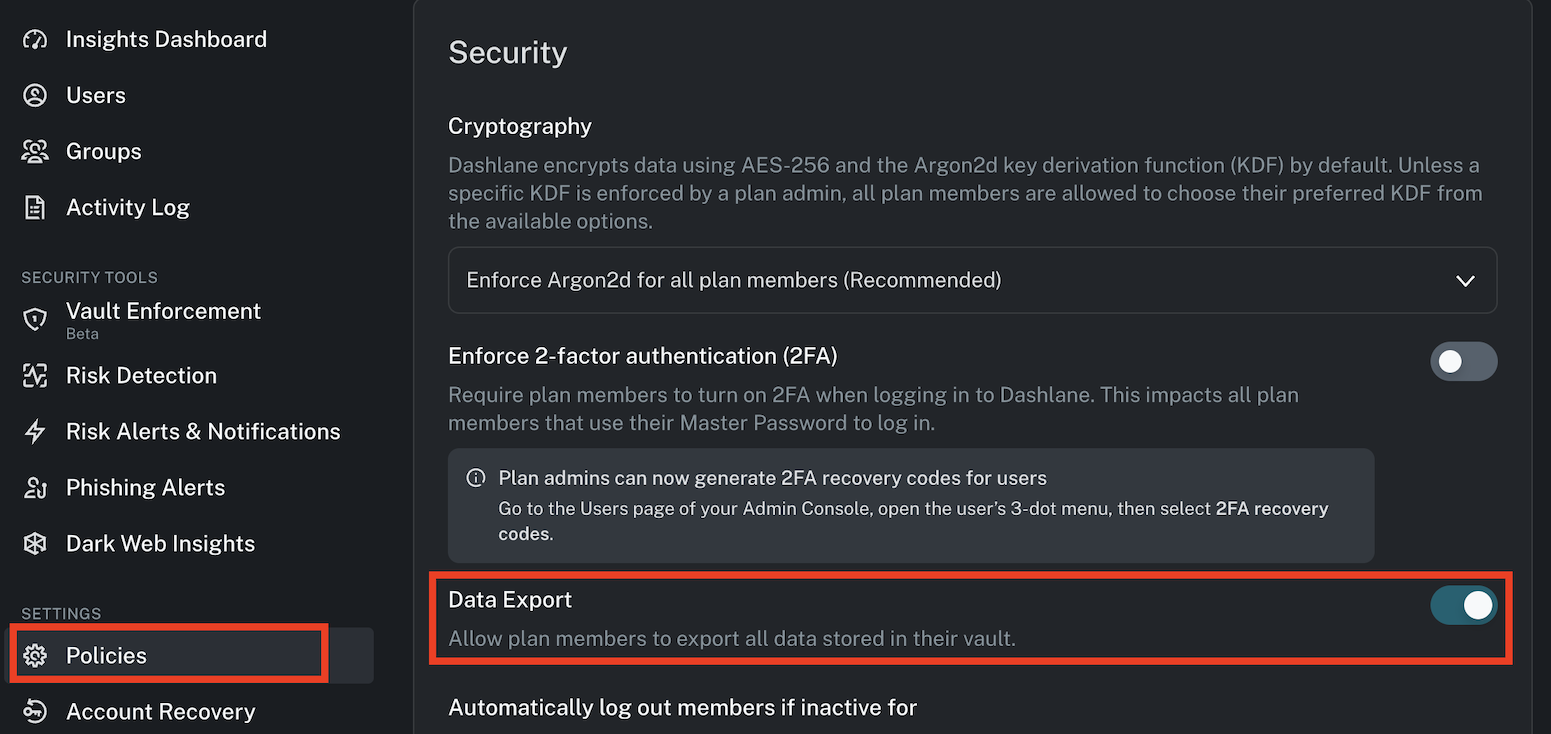
First, enable data export in the Dashlane Team Admin Console.
- On the left hand side, click Policies
- Scroll down to Data Export and toggle it on
Now, go back to your vault.
Export Dashlane records to CSV
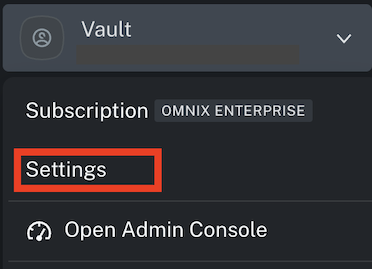
Click Vault in the top left > Settings
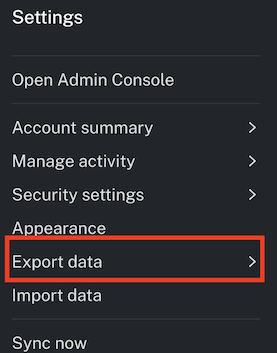
Click Export data, then Export to CSV in the window that appears
Open the zip file. Different types of records are divided into different CSVs. For example, if you have credit cards, you can use the TeamPassword credit card import template to upload this information. In this article, we will assume you are uploading login credentials.
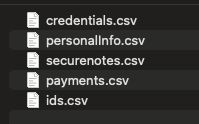
Open credentials.csv
Your Dashlane Collections are listed under the column titled “Categories.” This will be copied and pasted into the TeamPassword "group 1" column of the import template, which we will now download and open.
Download TeamPassword import template
From your TeamPassword home dashboard:
- Click your avatar in the top right
- Under Manage Teams, click the name of your organization
- In the left-hand menu, click Import Records
- Click Download Template in the top right
Open this template CSV in a new tab or page of Excel or Google Sheets:

At this point, read the import guide! Especially Step 3: Format Your CSV.
During the import process, a single record can be added to three different groups. Later, within the TeamPassword app, you can add a record to as many groups as you want. You can learn more about TeamPassword Groups here.
If the organization and group(s) columns are left blank (columns G, H, I, and J in the above screenshot), the record is imported into your Private vault.
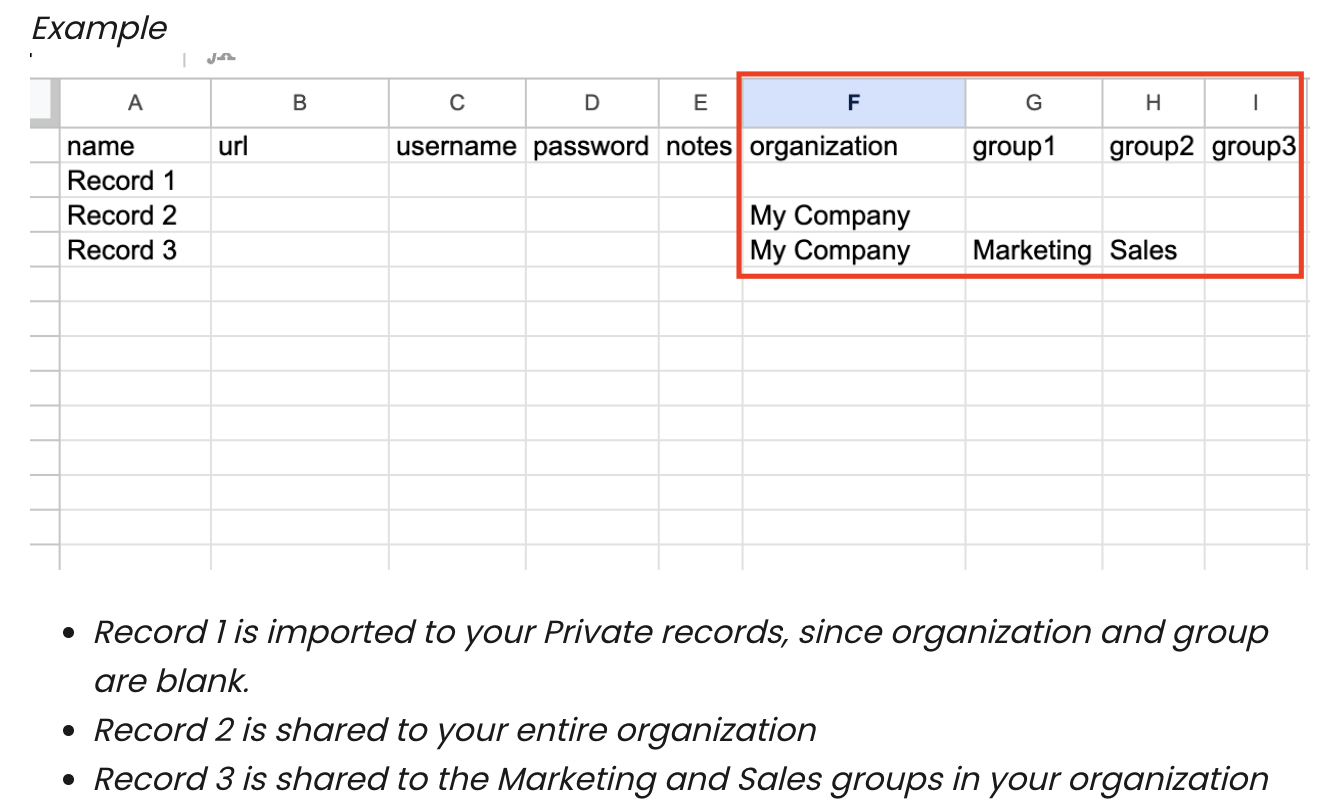
Because Dashlane saves which Collection each record came from in the "Category" column, you can copy the contents of this column into "group 1" of the import template. This ensure that each record gets placed in the appropriate group.
Copy remaining data from the Dashlane CSV to the TeamPassword CSV:
- username > username
- title > name
- password > password
- note > notes
- url > url
- otpUrl > auth_secret
If your Dashlane CSV has data in other columns, e.g. username2 or username3, this will need to go in the notes column of the TeamPassword import template. TeamPassword does not support custom fields or additional username fields at this time.