Definitions:
- Bitwarden ‘item’ = TeamPassword ‘record’.
- Bitwarden ‘collection’ ~= TeamPassword ‘group’.
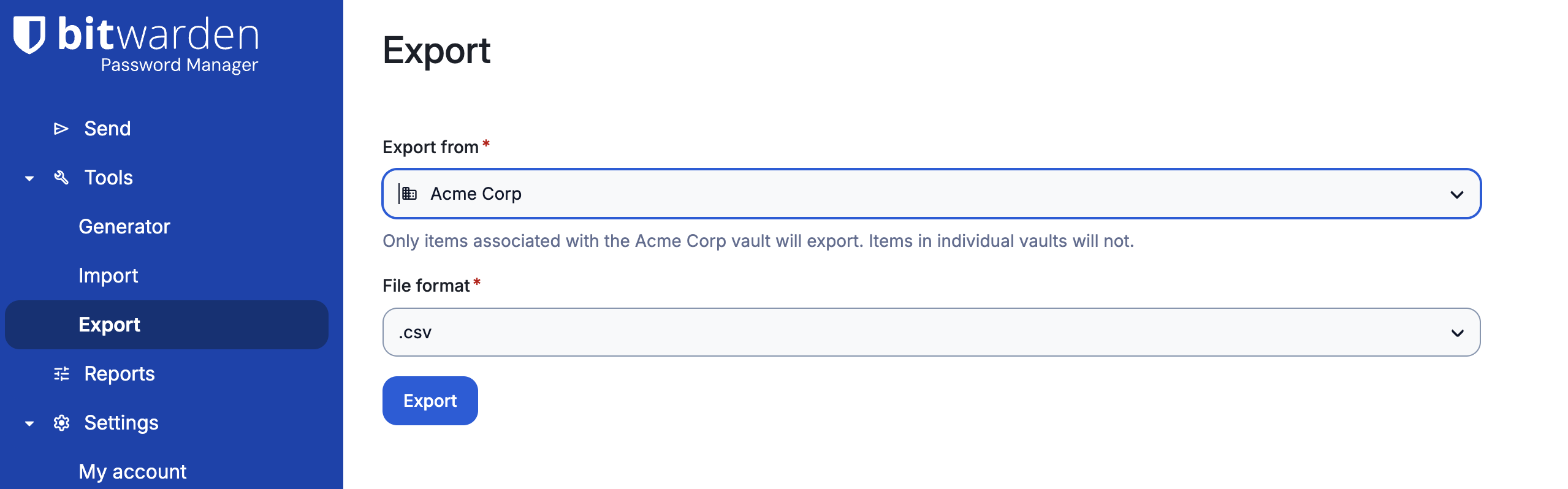
In Bitwarden, go to Tools > Export. Choose the Vault you wish to export from, and select the format as CSV. Click Export.
Open the CSV you just downloaded in Excel or Google Sheets. By default, the columns will look similar to this:

More detailed instructions on options for exporting from Bitwarden can be found in Bitwarden's Export Vault Data help article.
Next, go to your TeamPassword account. If you have not already created Groups (that match your Bitwarden Collections), do so now.
Bitwarden Collections are roughly equivalent to TeamPassword Groups. In Bitwarden, your personal vault is organized into folders, but for organization sharing, you use Collections. TeamPassword uses Groups as a way to organize and share groups of passwords with the appropriate users. Read the linked articles for each if you need further guidance.
TeamPassword does not support nested groups at this time.
Now that you’re created Groups, you’re ready to get the TeamPassword import template.
Download TeamPassword import template
From your TeamPassword home dashboard:
- Click your avatar in the top right
- Under Manage Teams, click the name of your organization
- In the left-hand menu, click Import Records
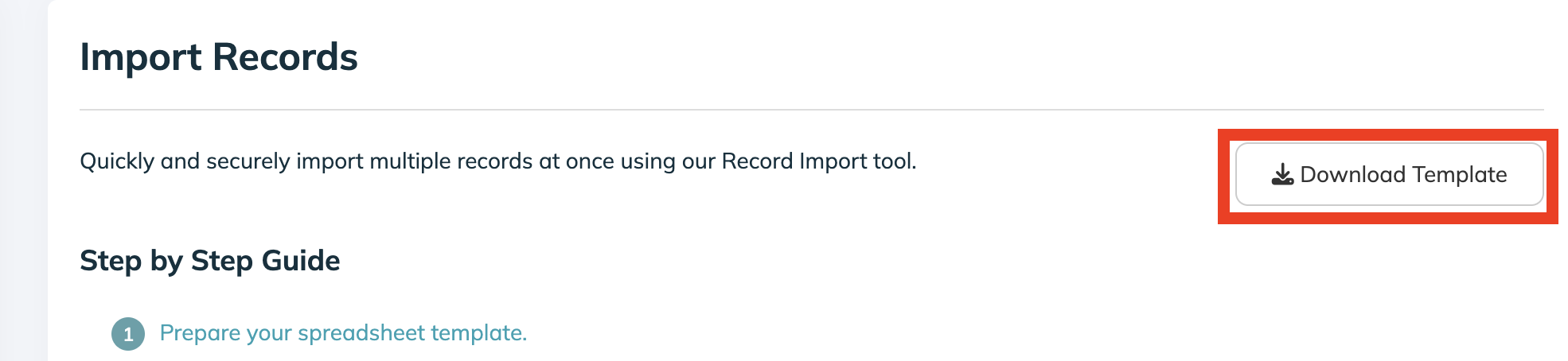
- Click Download Template
Open this template CSV in a new tab or page of Excel or Google Sheets:

At this point, read the import guide! Especially Step 3: Format Your CSV.
During the import process, a single record can be added to three different groups. Later, within the TeamPassword app, you can add a record to as many groups as you want.
If the organization and group(s) columns are left blank (columns G, H, I, and J in the above screenshot), the record is imported into your Private vault.
- name > name
- notes > notes
- login_uri > url
- login_username > username
- login_password > password
- login_totp > auth_secret
- collections > group1, group2, or group3
Bitwarden has these additional fields which can be ignored:
- Type
- Fields
- Reprompt
- archivedDate
Once your data is moved into the TeamPassword import template, download it as a CSV and follow the remaining instructions under "3: Import the CSV" (linked) to upload it to TeamPassword.
If you have any questions, please reach out to our team: https://teampassword.com/support