How to view and clear clipboard history in Windows 10 and 11

The clipboard is a handy feature, but its history can hold sensitive information. Here's a quick guide on how to manage your clipboard history in Windows 10 and 11.
Table of Contents
Viewing and Clearing Your Clipboard History
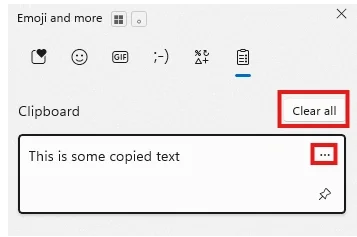
To view your clipboard history in Windows, press the Windows key + V. This will open a small window showing a list of the items you've recently copied, including text and images.
To clear your entire clipboard history, click the Clear all button at the top of the clipboard history window.
If you only want to remove a specific item, click the three dots, then the Trash icon.
Why Clear Your Clipboard History?
You might wonder why you'd want to clear your clipboard history. The main reason is security. If you've copied sensitive information like passwords, credit card numbers, or personal messages, that data remains in your clipboard history. Anyone with access to your computer could potentially view it. For a deeper dive into password security, check out this ultimate guide to password security.
Another reason is to prevent errors. Sometimes, outdated or corrupted clipboard items can cause issues in certain applications. Clearing your clipboard can help resolve these problems.
Enabling and Disabling Clipboard History
If you don't use the clipboard history feature, you can disable it entirely. Here's how:
- Open the Settings app (Windows key + I).
- Go to System > Clipboard.
- Toggle the switch for Clipboard history to off.
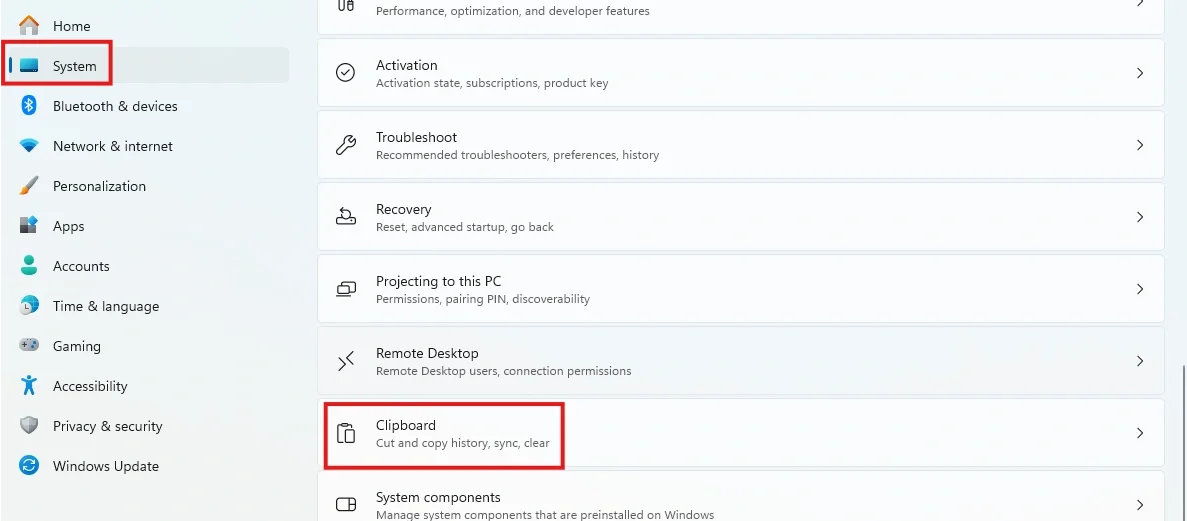
If you ever want to re-enable it, just follow the same steps and toggle the switch back on.
Automating the Task
For those who want to ensure their clipboard is cleared regularly without manual intervention, you can create a simple shortcut that runs a command to clear the clipboard. Here is how:
- Right-click on your desktop and select New > Shortcut.
- In the location field, type:
cmd /c "echo off | clip"and click Next. - Name the shortcut something descriptive like "Clear Clipboard" and click Finish.
Now, whenever you double-click this shortcut, your clipboard will be instantly cleared.
Frequently Asked Questions (FAQ)
Does macOS have a clipboard history feature?
By default, macOS does not have a built-in clipboard history feature like Windows. It only stores the most recently copied item. To get clipboard history functionality on a Mac, you'll need to use a third-party application like Paste, CopyQ, or Raycast.
What about Linux? How can I get clipboard history?
Similar to macOS, most Linux distributions don't come with a clipboard manager out of the box. However, there are many excellent open-source options available, such as CopyQ, Diodon, and GPaste. These can be installed through your distribution's package manager.
Is it safe to use a third-party clipboard manager?
While many third-party clipboard managers are safe and offer advanced features, it's crucial to choose a reputable one. Since these apps will have access to everything you copy, be sure to download them from official websites or trusted sources. Look for open-source options that have been reviewed by the community.
Will clearing my clipboard history delete pinned items?
No, clearing your clipboard history will not delete any items you have pinned. Pinned items are meant to be saved for later use and must be manually unpinned and deleted.
Secure Your Business with TeamPassword
TeamPassword is the user-friendly and affordable password manager built for the demands of modern teams.
Get robust security features that are simple to manage, including enforceable 2FA, detailed activity logs, and an integrated TOTP authenticator. Empower your team with unlimited records, flexible user-roles, and a seamless Google sign-in to get started in minutes.
Protect your entire business for a price that makes sense, with plans starting at just $2.41/user/month.
Posts Recomendados
The Database Behind Every Camera on Your Street
An explanation of the security implications of Flock Safety's interconnected database that's sweeping the nation.
Facebook Hacks: a History of Security Breaches at Facebook and Meta
Facebook has exposed millions of users' personal information over the years. Learn how to protect your company from ...
The Scariest Data Breaches of All Time
Learn what the scariest data breaches of all time are and how can you protect your data from ...
Top 10 cybersecurity threats for nonprofits (and how to prevent them)
Here’s what you need to know about cybersecurity threats for nonprofits, the top risks they face, and practical ...
Fortaleça a segurança das suas senhas
O melhor software para gerar e gerenciar suas senhas corretamente.