How to Disable Firefox Password Manager in 4 Steps

If you've made the switch to a dedicated password manager or are tired of Firefox's prompt to "save this password," you've come to the right place.
While the Firefox built-in password manager is a decent choice if you exclusively use the Firefox browser for personal use, its shortcomings are apparent when used in a business setting or even if you use multiple browsers and need to save various kinds of data securely.
Many prefer (and we recommend) using a dedicated third-party password manager. These applications provide more robust security features, cross-platform compatibility, and additional functionalities like customizable password generators and sharing. Disabling Firefox password manager allows users to rely solely on their preferred third-party solution.
Table of Contents
How to Disable Firefox Password Manager
For Firefox users on Windows and MacOS:
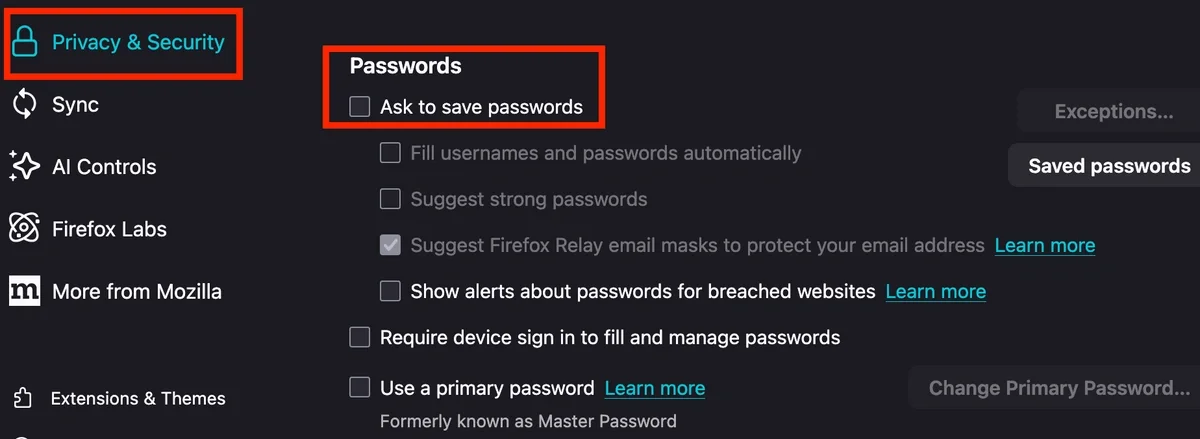
- Click the Hamburger Menu button in the top right of your browser and click Settings
- Click Privacy and Security on the left
- Scroll down to the Passwords section
- Uncheck Ask to save passwords
For Firefox users on iOS:
- Tap Menu.
- Tap Passwords - you may have to use Touch ID or enter a password
- Turn off Save Logins.
For Firefox users on Android:
- Tap the three dots Menu and tap Settings
- Tap Passwords, then Save passwords. Select Never save.
- Tap the back arrow twice, then choose Autofill from the selections. Toggle off Save and autofill addresses and Save and autofill cards
How to Delete Saved Passwords in Firefox Password Manager
To delete saved passwords from Firefox password manager, follow these 2 steps:
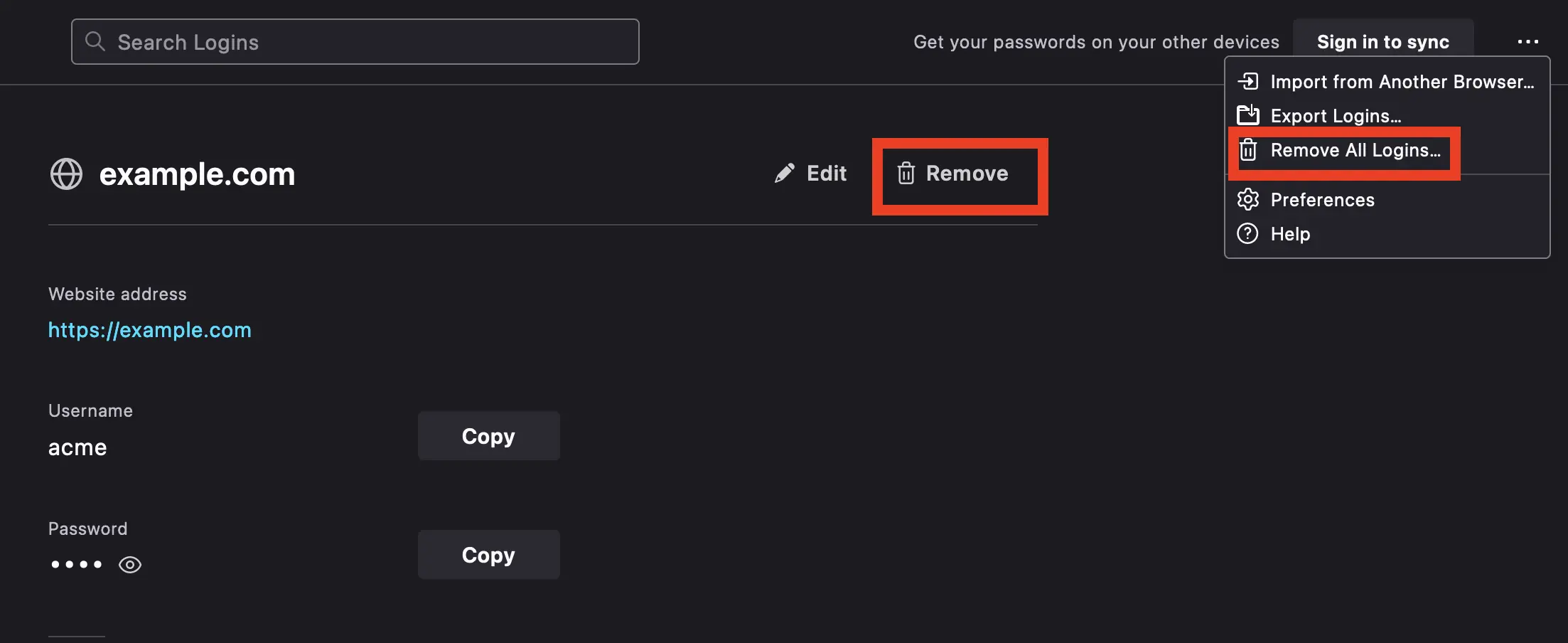
- Click the Menu button in the top right of your browser and click Passwords.
- Here, you can either select the password you wish to delete and click Remove, or click the three dots in the top right and select Remove All Logins...
Beware that the latter will permanently delete your saved logins and cannot be undone.
If switching to a dedicated password manager, you may want to export your passwords from Firefox.
- Firefox Menu > Passwords > three dots on the top right > Export Logins...
This exports all your passwords into a CSV file - so be careful with it!
Do you frequently use other browsers?
Are you wondering how to disable the password managers on other browsers you use? These articles might help:
- How to Disable Google Chrome Password Manager
- How to Disable Microsoft Edge Password Manager
- How to Disable Safari Password Manager
Is Firefox Password Manager Safe?
Does the Firefox password manager keep your passwords safe? For personal use, yes. Firefox employs robust zero-knowledge AES-256 encryption when syncing your credentials across devices via your Firefox Account, meaning Mozilla cannot read your data. It also supports Two-Factor Authentication (2FA) to protect your account from being compromised remotely.
Locally, Firefox protects your vault by integrating directly with your device's built-in authentication (such as Windows Hello, macOS Touch ID, or mobile biometrics). By default, Firefox will prompt you for your device PIN or fingerprint before revealing or autofilling a password, keeping your accounts safe even if you leave your laptop unlocked. Users also have the option to set a local "Primary Password" for an additional layer of security.
Additionally, Firefox checks your saved logins against a database of known data breaches to alert you if your credentials have been compromised online.
Where Firefox Falls Short
While Firefox is highly secure for an individual user, it is strictly a personal credential manager. It falls short for businesses, teams, and power users in several key areas:
- No Secure Sharing: Firefox does not have a safe way to share passwords with colleagues or family members. To share a password, you would have to resort to insecure methods like text messages or chat apps.
- No Secure Notes: It lacks a dedicated vault space to store sensitive documents, software licenses, or free-text notes.
- Browser Lock-in: If your team works across multiple browsers—jumping between Firefox, Chrome, Edge, and Safari—a built-in browser manager creates major workflow friction.
In summary, Firefox is a great, secure option if you exclusively use the Firefox browser for personal browsing. But if you need to safely share passwords with a team, secure company documents, or want a dedicated password vault available seamlessly across all browsers and devices, you will need a dedicated third-party password manager.
How TeamPassword Can Help
TeamPassword is a fast, safe, and easy solution for storing and managing your passwords that doesn't leave you vulnerable to Firefox password security issues. It lets you create and customize strong passwords on any browser or device, and you can access them whenever and wherever you need. With TeamPassword, your passwords remain secure even if your device ends up in the wrong hands.
Using a dedicated password manager like TeamPassword adds an extra layer of protection. It requires you to log in with a separate "master" password and automatically locks your passwords after a specific time. While slightly less convenient than Firefox's built-in features, password managers are significantly more secure.
TeamPassword offers a Firefox extension that autofills most websites and displays record information in a convenient dropdown, eliminating the need to visit a separate page. It also includes extensive features for safe credential sharing, something Firefox's password feature lacks entirely. Passwords are organized into Groups, and team members can be given access as needed. Removing members and editing records is just as easy.
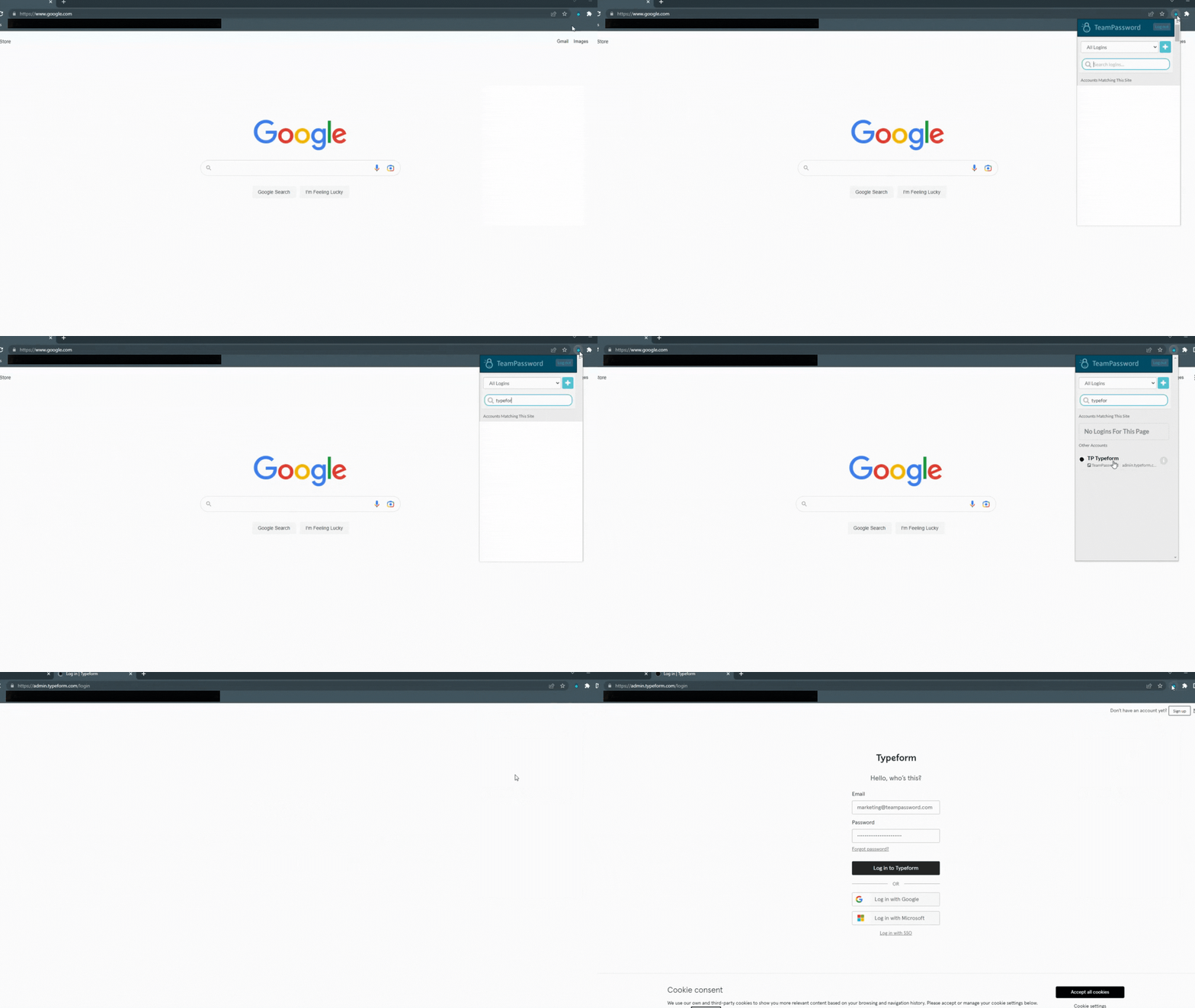
With TeamPassword, you can enjoy the convenience of password management while keeping your information secure. Try it for free today!
추천 기사
The Database Behind Every Camera on Your Street
An explanation of the security implications of Flock Safety's interconnected database that's sweeping the nation.
Facebook Hacks: a History of Security Breaches at Facebook and Meta
Facebook has exposed millions of users' personal information over the years. Learn how to protect your company from ...
The Scariest Data Breaches of All Time
Learn what the scariest data breaches of all time are and how can you protect your data from ...
Top 10 cybersecurity threats for nonprofits (and how to prevent them)
Here’s what you need to know about cybersecurity threats for nonprofits, the top risks they face, and practical ...